ZArchiver for iOS – iPhone App Availability & Download Guide
Explore ZArchiver for iOS, its availability on iPhone, and the options for managing compressed files on Apple devices. This guide explains the difference between the original Android application by ZDevs and similarly named iOS apps from other developers, along with installation details and APK compatibility.
Find out what is available through the App Store, which features to check, and how to choose an archive app that suits your iPhone.
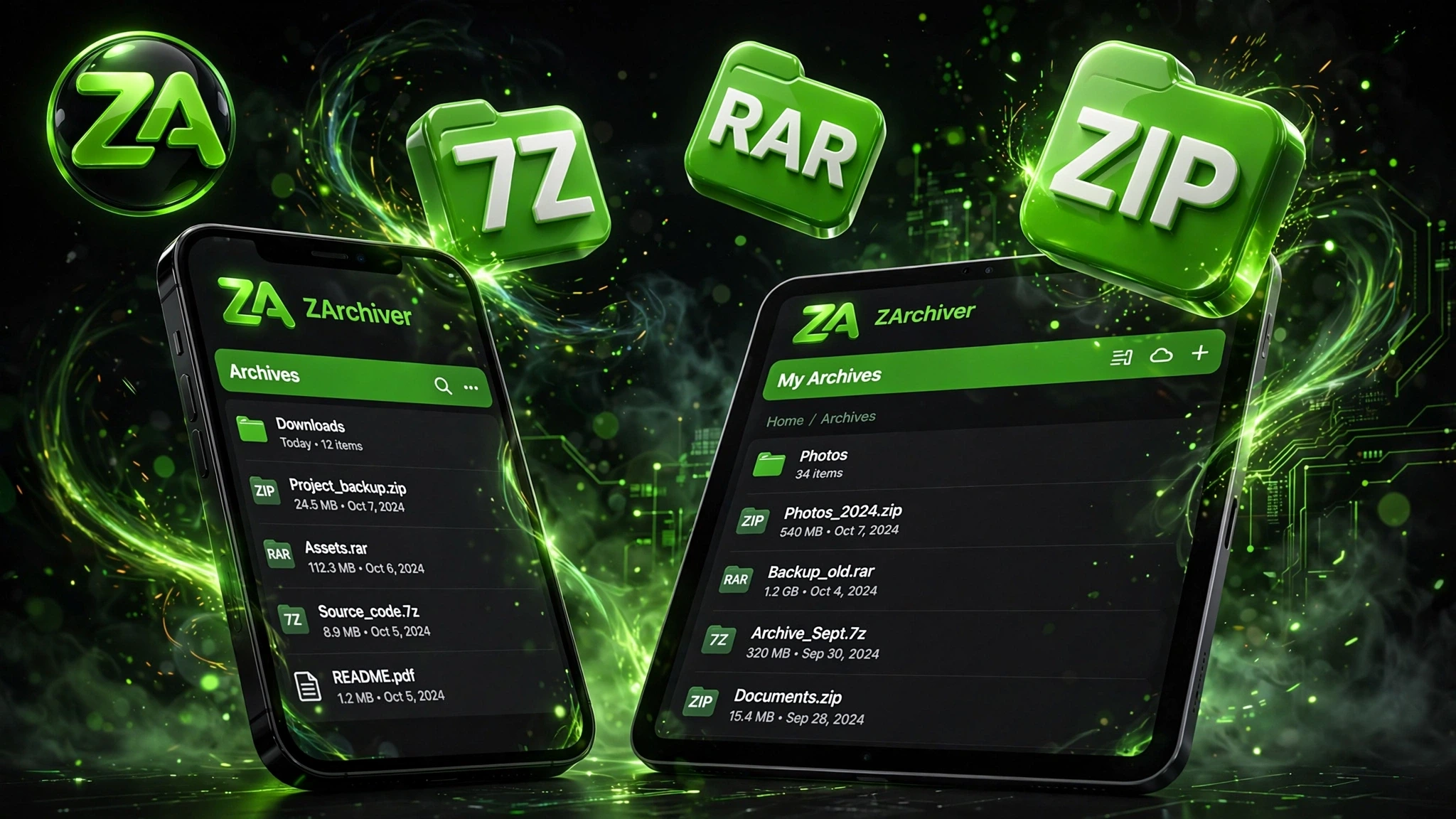
Is ZArchiver Available for iOS?
The ZArchiver iOS search can refer to the original Android app or a similarly named application available for iPhone. The original app is developed by ZDevs, while the App Store listing reviewed here is published by TIMON SOFTWARE CO., LTD. Check the app’s developer and compatibility details before installing it on your device.
App Information |
Details |
|---|---|
|
App searched for |
ZArchiver for iOS |
|
Original Android developer |
ZDevs |
|
Original Android app format |
APK |
|
iOS app developer |
TIMON SOFTWARE CO., LTD |
|
Platform |
iPhone |
|
Minimum iOS requirement |
iOS 15 or later |
|
Original Android app format |
APK |
|
APK compatibility |
Android APK files cannot be installed directly on iOS |
|
Archive formats listed |
ZIP, RAR, 7Z, TAR |
|
Additional listed features |
Password-protected archives and file sharing |
The App Store information above refers to the specific iPhone listing, not an official iOS release from ZDevs. Availability may vary by country or region.
Is ZArchiver Available for iOS and iPhone?
Yes, you can find a similarly named ZArchiver app for iPhone through the Apple App Store. However, the original Android application is developed by ZDevs, while the iPhone listing reviewed here is published by TIMON SOFTWARE CO., LTD. This distinction is important when choosing an app for your device.
Original ZArchiver vs. Similarly Named iOS Apps
The main difference is the developer behind each application. ZDevs develops the original ZArchiver for Android, while the App Store lists ZArchiver: UnZip, UnRar, 7Z under TIMON SOFTWARE CO., LTD. Another application, ZArchiver – Zip UnZip, is published by Liam Sammy.
Before downloading ZArchiver for iPhone or iPad, check the app’s developer, supported archive formats, and user reviews. A similar name or icon does not confirm that an iOS application is officially associated with ZDevs. Choosing an app based on its actual features and publisher helps you find the right archive manager for your device.
ZArchiver APK for iOS – APK vs. IPA Explained
Many users search for ZArchiver APK iOS hoping to install the Android app on their iPhone or iPad. However, APK files are designed for Android devices and cannot be installed directly on iOS. Apple devices use apps built for their own operating system, so downloading a ZArchiver APK for iOS will not make the Android version work on an iPhone.
APK vs. IPA: What’s the Difference?
Feature |
APK |
IPA |
|---|---|---|
|
Full name |
Android Package |
iOS App Store Package |
|
Operating system |
Android |
iOS and iPadOS |
|
File extension |
.apk |
.ipa |
|
Main purpose |
Install Android applications |
Package iPhone and iPad applications |
|
ZArchiver compatibility |
Original Android app |
No official ZDevs IPA verified |
Can You Download ZArchiver IPA for iPhone?
You may come across websites offering a ZArchiver IPA download or claiming to provide an iOS version of the Android app. However, an official IPA release from ZDevs has not been verified. Third-party iOS applications may offer similar archive management features, but they should not be confused with the original ZArchiver. For iPhone users, the better option is to choose a compatible archive manager from the App Store rather than rely on an unverified IPA file.
Download ZArchiver for iOS & iPad
Downloading an archive manager for your iPhone is simple when you choose a compatible app. If you want to download ZArchiver for iOS, you can explore similarly named applications on the Apple App Store that help open, extract, and manage ZIP, RAR, and 7Z files. Follow the steps below to find a suitable app and get started.
Check the App Listing
Open the App Store on your iPhone and search for ZArchiver. Review the available results and select an app that offers the archive management features you need. Check the developer’s name, iOS requirements, user ratings, and supported file formats before downloading. Remember that similarly named apps may come from different developers and may not offer the same features as the original Android version.
Install the Compatible iOS App
Once you find a suitable application, follow these simple steps to complete the ZArchiver iOS installation:
- Open the selected app’s page in the App Store.
- Tap Get or the displayed price to begin the download.
- Confirm the installation using Face ID, Touch ID, or your Apple Account password if prompted.
- Once installed, tap Open to launch the app.
- Explore its file management tools to open or extract supported archives.
After installation, you can start organizing and extracting compressed files directly on your iPhone using the features supported by your chosen app.
Using an Android device instead? Visit our ZArchiver APK download page to explore the original Android app, its features, and download options.
Features
When looking for archive-management features on an iPhone or iPad, users can handle common tasks such as extracting files, creating ZIP archives, and organizing downloaded content.
📦 Archive Extraction
Open supported archive files and extract their contents directly to your device. ZIP files can be extracted with the built-in Files app, while other formats may require a compatible archive app.

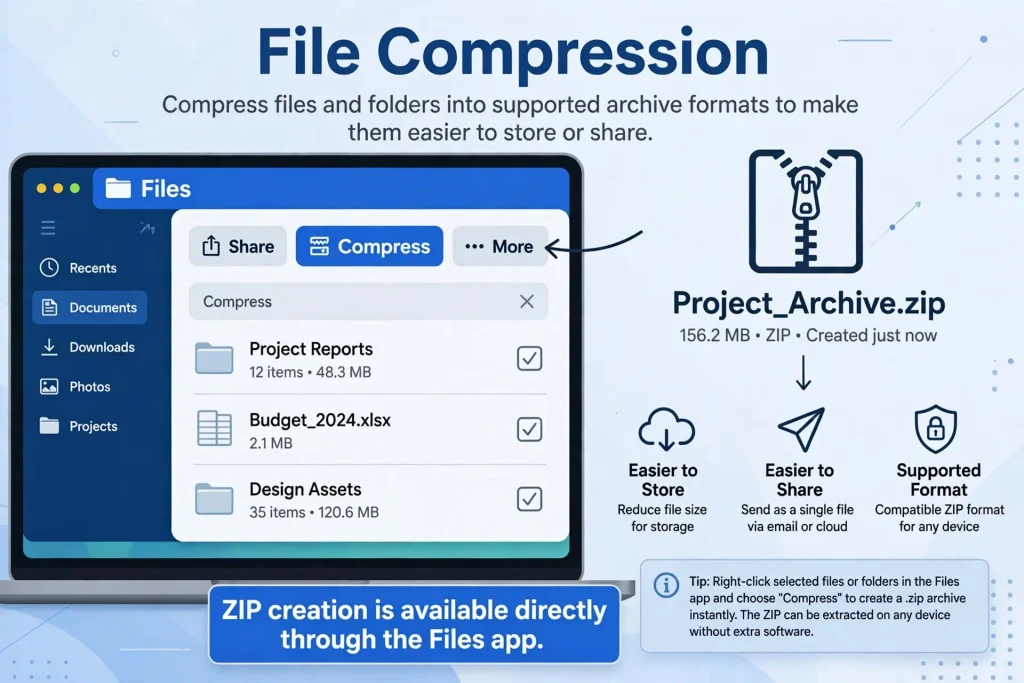
🗜️ File Compression
Compress files and folders into supported archive formats to make them easier to store or share. ZIP creation is available directly through the Files app.
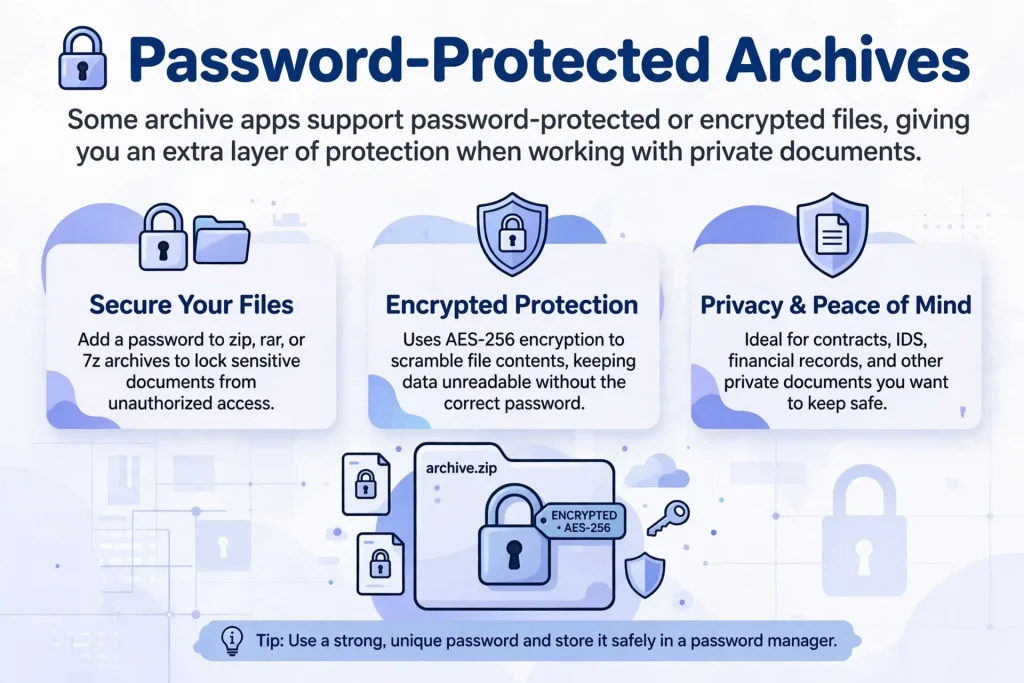
🔐 Password-Protected Archives
Some archive apps support password-protected or encrypted files, giving you an extra layer of protection when working with private documents.
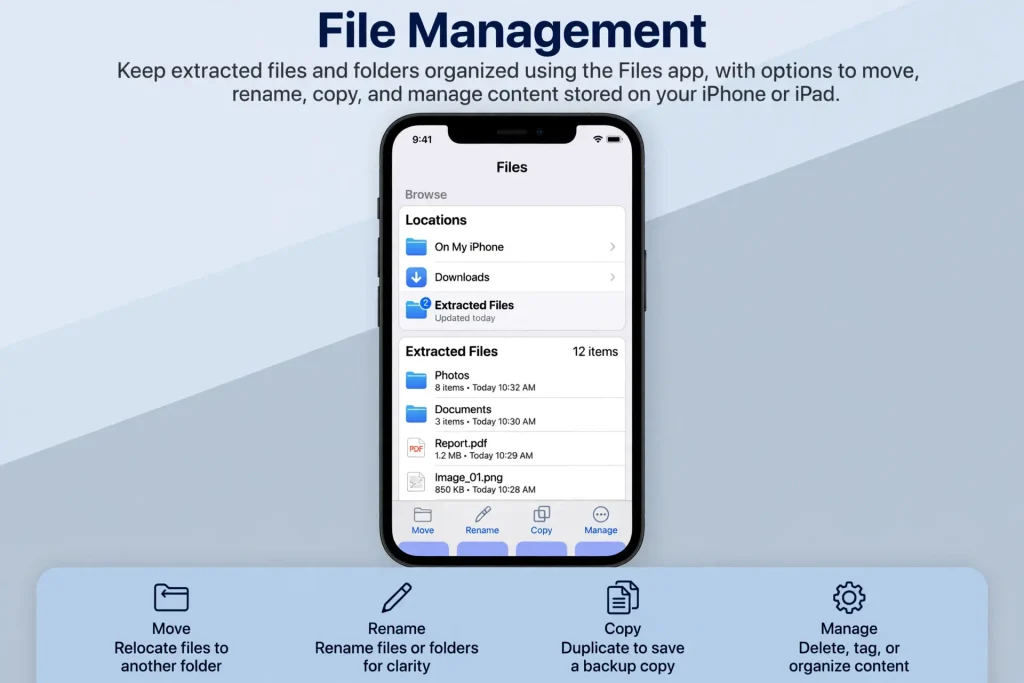
📁 File Management
Keep extracted files and folders organized using the Files app, with options to move, rename, copy, and manage content stored on your iPhone or iPad.
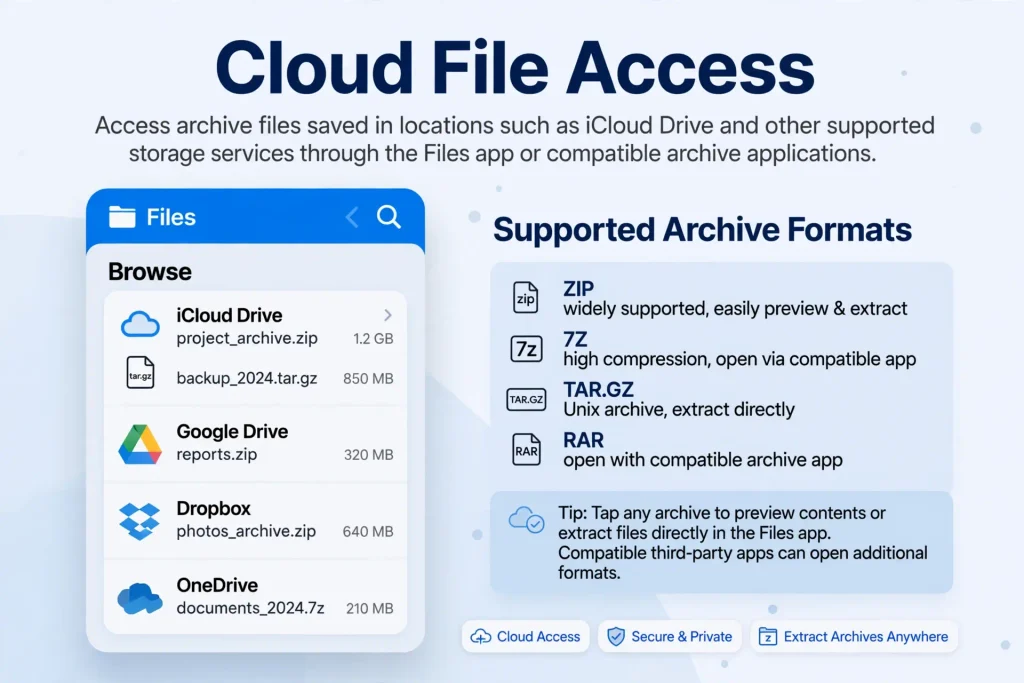
☁️ Cloud File Access
Access archive files saved in locations such as iCloud Drive and other supported storage services through the Files app or compatible archive applications.
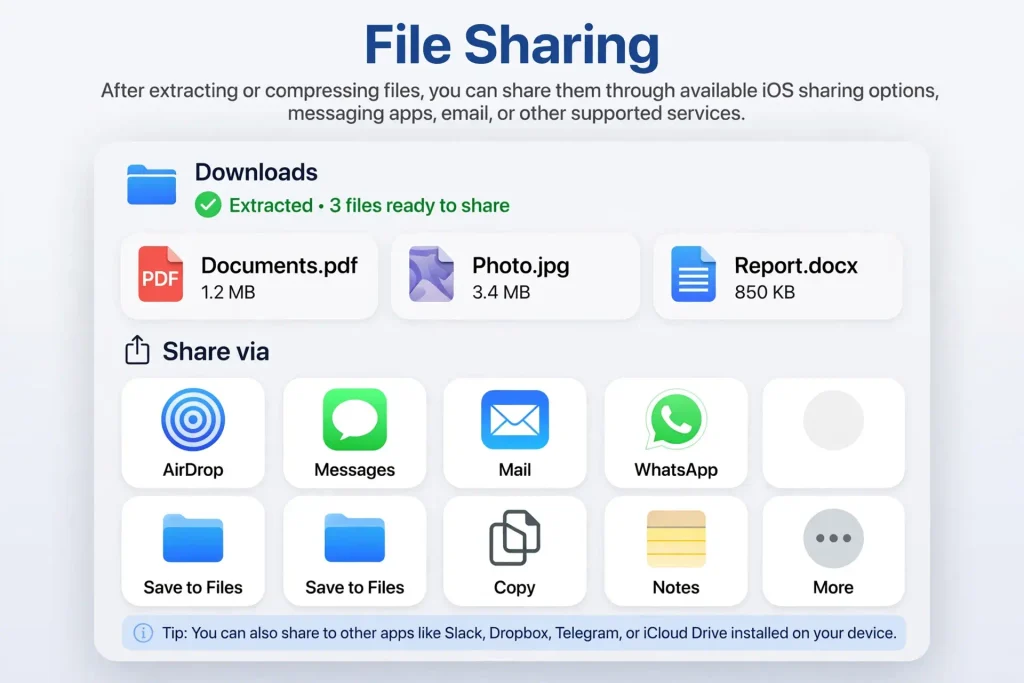
📤 File Sharing
After extracting or compressing files, you can share them through available iOS sharing options, messaging apps, email, or other supported services.
ZArchiver Pro for iOS – Is It the Same as Android?
ZArchiver Pro for iOS is not the same as the original Android version developed by ZDevs. On Android, ZArchiver Donate offers additional features such as password storage, archive previews, and editing files inside archives. The similarly named iPhone app is published by a different developer and offers its own Premium purchases. Although both apps focus on archive management, their features, pricing, and functionality may differ.
ZArchiver Android vs. iOS: Key Differences
Feature |
Original Android App |
Similarly Named iOS App |
|---|---|---|
|
Developer |
ZDevs |
TIMON SOFTWARE CO., LTD |
|
Platform |
Android |
iPhone |
|
Pro/Premium version |
ZArchiver Donate |
Separate Premium subscriptions |
|
Archive features |
Original ZArchiver tools |
Depends on the iOS app |
|
Compatibility |
Android devices |
Compatible iPhones |
Although both apps offer archive management features, their Pro and Premium editions are different. An Android Pro APK cannot be installed directly on an iPhone. If you use an Android device and want additional archive management features, explore our ZArchiver Pro APK page to learn about its features, compatibility, and download options.
Is ZArchiver for iOS Safe? What About Hack Downloads?
ZArchiver for iOS can be useful for managing compressed files, but its safety depends on the application you choose and where you download it. The Apple App Store includes similarly named apps from different developers, so a familiar name or icon does not guarantee that an app comes from ZDevs. Before installing, check the publisher, user reviews, privacy policy, and permissions requested by the app.
Some websites advertise ZArchiver iOS hack versions or modified IPA files with unlocked premium features. These downloads may contain unwanted changes, compromise your personal files, or expose your device to security risks. For a safer experience, use a trusted distribution source, review the app’s privacy details, and avoid unverified modified versions. An official ZDevs release for iOS has not been confirmed.
How to Open ZIP, RAR & 7Z Files on iPhone
Opening compressed files on an iPhone is simple when you use the right tool for the file format. ZIP archives can be handled directly through Apple’s Files app, while RAR and 7Z files generally require a compatible archive app.
Open a ZIP File
You can open a ZIP file without installing another app:
- Open the Files app on your iPhone.
- Find the ZIP file in Downloads, iCloud Drive, or another folder.
- Tap the ZIP file.
- Your iPhone automatically creates a folder with the extracted contents.
- Tap the new folder to view your files.
Open a RAR or 7Z File
RAR and 7Z archives are not handled the same way as standard ZIP files in Apple’s built-in Files workflow. To open them, install a compatible archive app from the App Store, then use Share or Open With from the Files app to send the archive to that app for extraction.
Extract Files to Your iPhone
After extracting an archive, you can save the contents to On My iPhone, iCloud Drive, or another available folder in the Files app. You can then move, rename, share, or organize the extracted documents and folders like other files on your device.
Pros and Cons
iPhone and iPad users can manage compressed files using Apple’s built-in Files app or a compatible third-party archive tool. These options cover many everyday tasks, but supported formats and advanced features vary between apps.
👍 Pros
👎 Cons
Frequently Asked Questions
Conclusion
ZArchiver for iOS offers users a way to explore archive management apps for iPhone and iPad, although the original ZArchiver developed by ZDevs is designed for Android. Similarly named iOS apps may provide features such as ZIP, RAR, and 7z extraction, but their developers and functionality can differ. Before downloading, check the App Store listing, device compatibility, and available features to choose a reliable app for managing your files.Show less