How to Extract ZIP Files Using ZArchiver on Android
Want to know how to extract ZIP file in Android without a computer? ZArchiver makes it easy to unzip photos, documents, and downloaded files directly on your phone. Whether you’re learning how to extract ZIP file in mobile storage or choosing the right extraction folder, this guide covers the simple steps, extraction options, and solutions to common errors.
What Is ZIP File Extraction on Android?
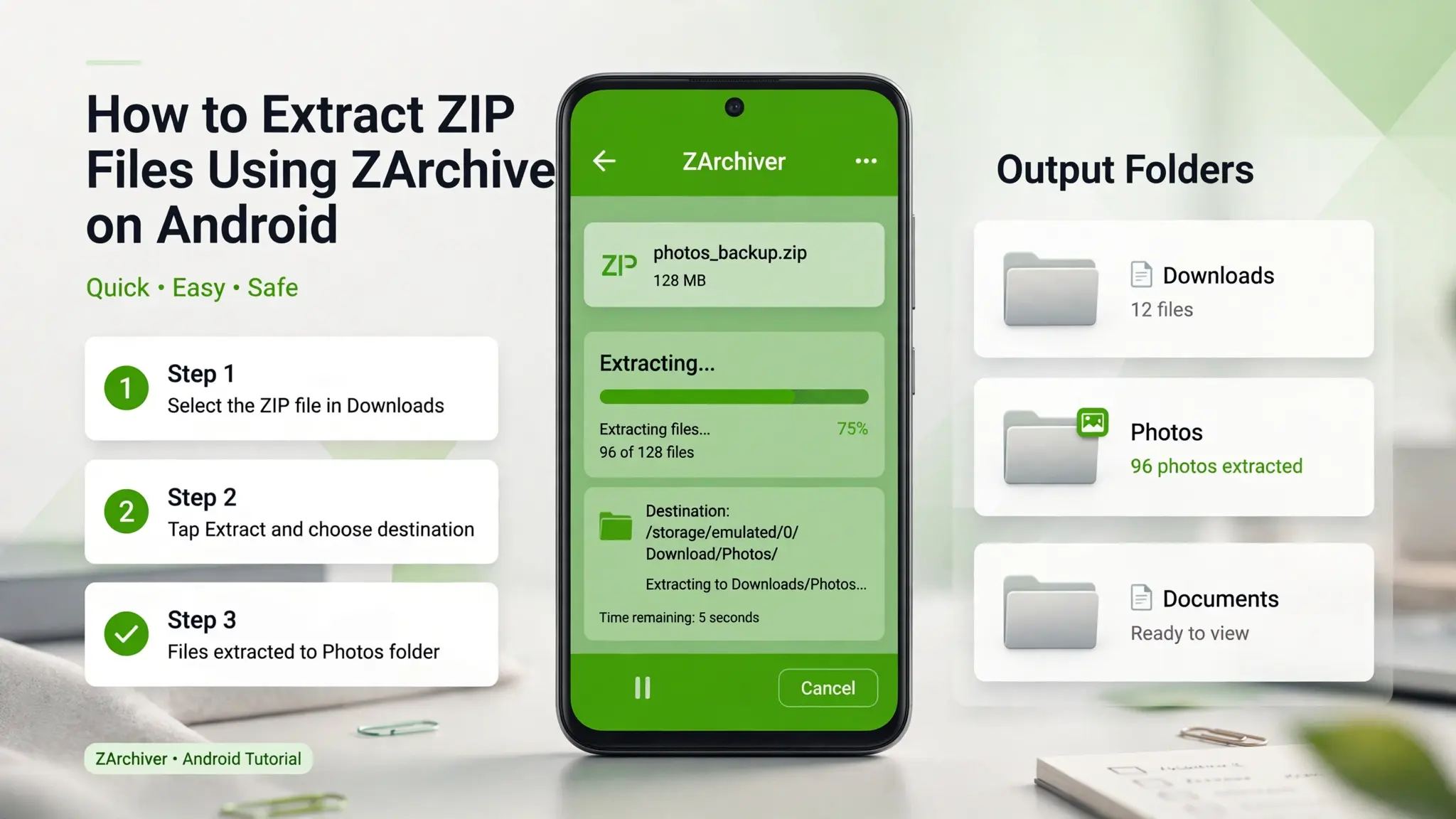
ZIP file extraction is the process of unpacking compressed files so you can access and use them on your phone. A ZIP archive can contain photos, documents, videos, or multiple folders in a single file. Opening a ZIP file lets you view what’s inside, while extracting it saves the contents separately for everyday use. ZArchiver is a useful app for extracting ZIP files that allows you to extract ZIP files on Android, choose a destination folder, and manage password-protected archives. It also supports other formats, including RAR and 7Z, making it a convenient choice for Android file management.
How to Extract ZIP Files Using ZArchiver on Android
Extracting ZIP files with ZArchiver takes only a few simple steps. Whether you’ve downloaded a compressed folder containing photos, documents, or other files, ZArchiver lets you unzip them directly on your Android phone. Follow this step-by-step guide to learn how to unzip files with ZArchiver and save them in your preferred location.
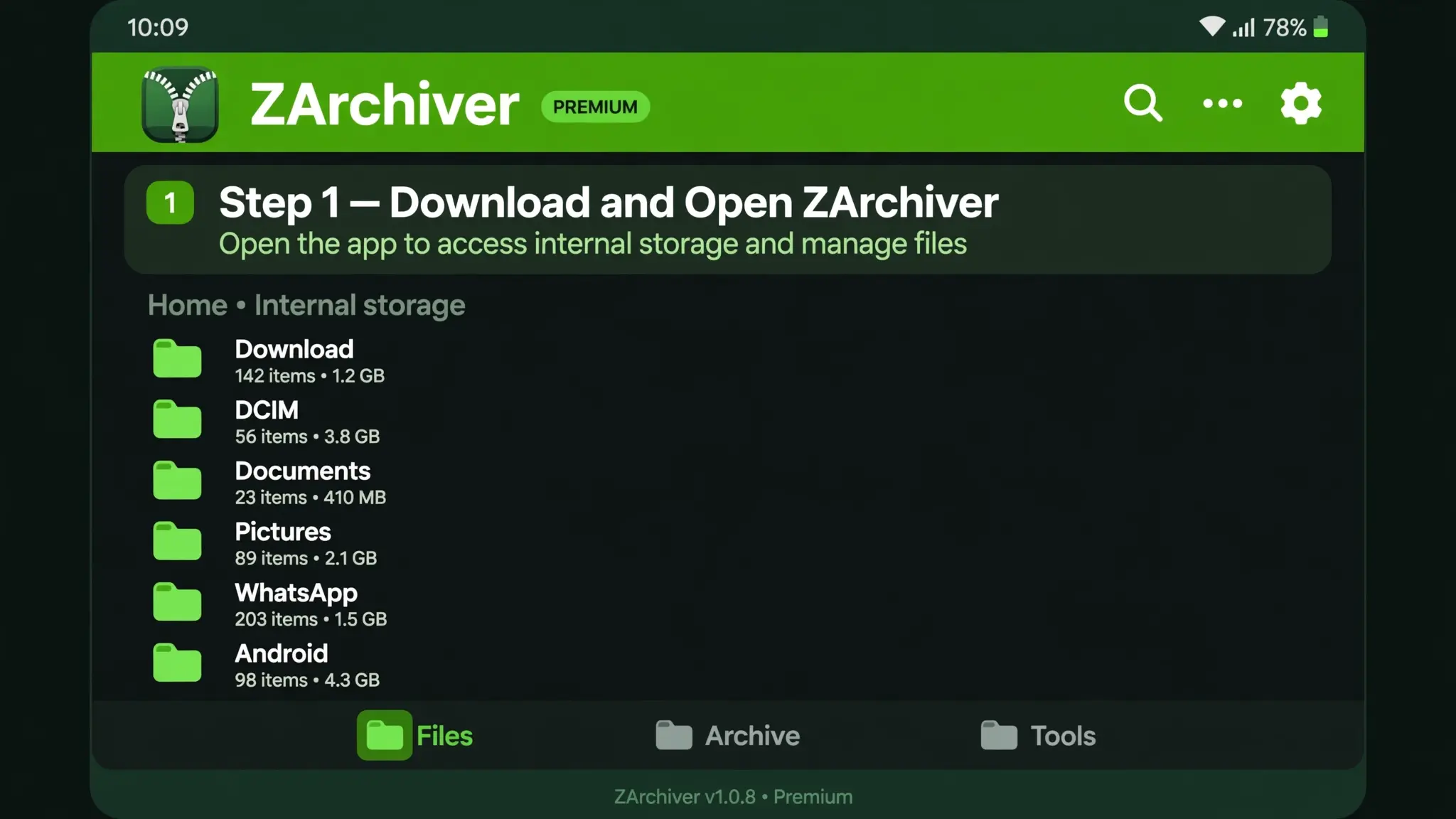
Step 1: Download and Open ZArchiver
First, download and install ZArchiver on your Android phone from a trusted source. Once the installation is complete, tap the ZArchiver icon to launch the app. You’ll see a file manager interface displaying folders and files stored on your device.
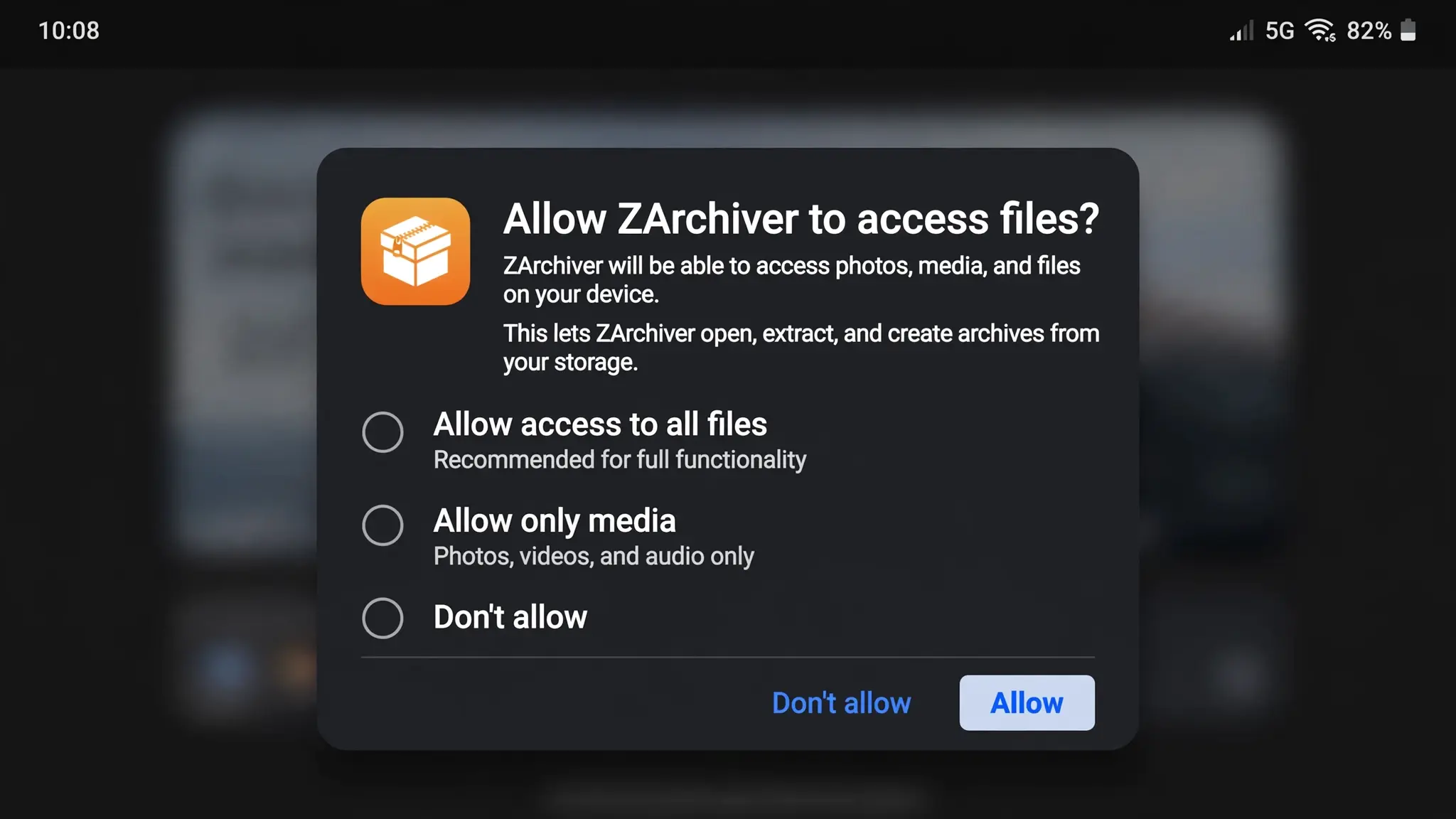
Step 2: Allow File Access Permissions
When you open ZArchiver for the first time, Android may ask you to grant file access permission. Follow the on-screen instructions and allow the access needed to browse and extract your ZIP files. If permission is denied, you may need to enable the appropriate file access in your phone’s app settings.
Step 3: Find Your ZIP File on Android
Browse through your phone’s internal storage and locate the ZIP file you want to extract. Most files downloaded from browsers are saved in the Download folder, while files received through other apps may be stored elsewhere. Look for the filename ending in .zip, such as Photos.zip.
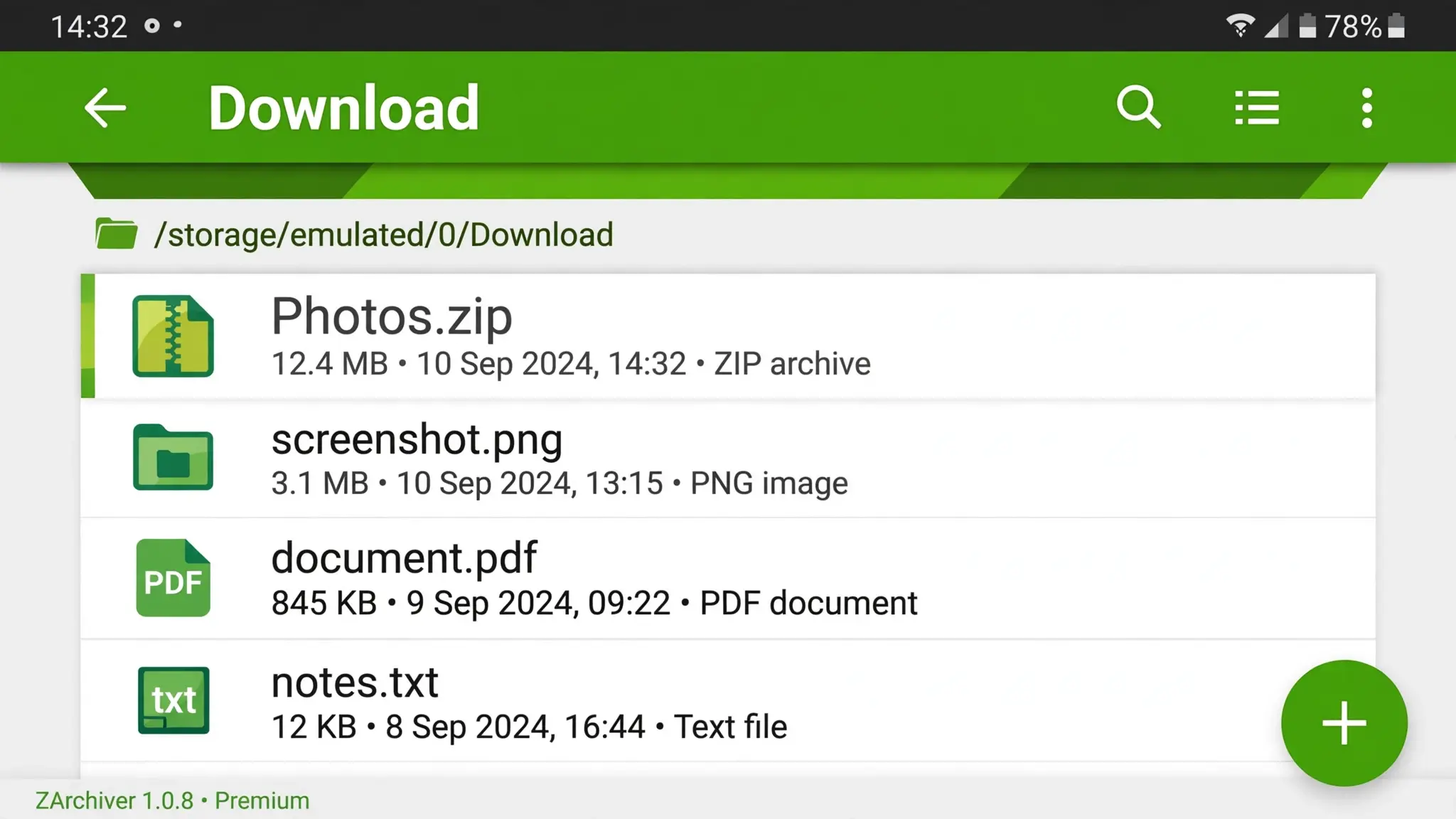
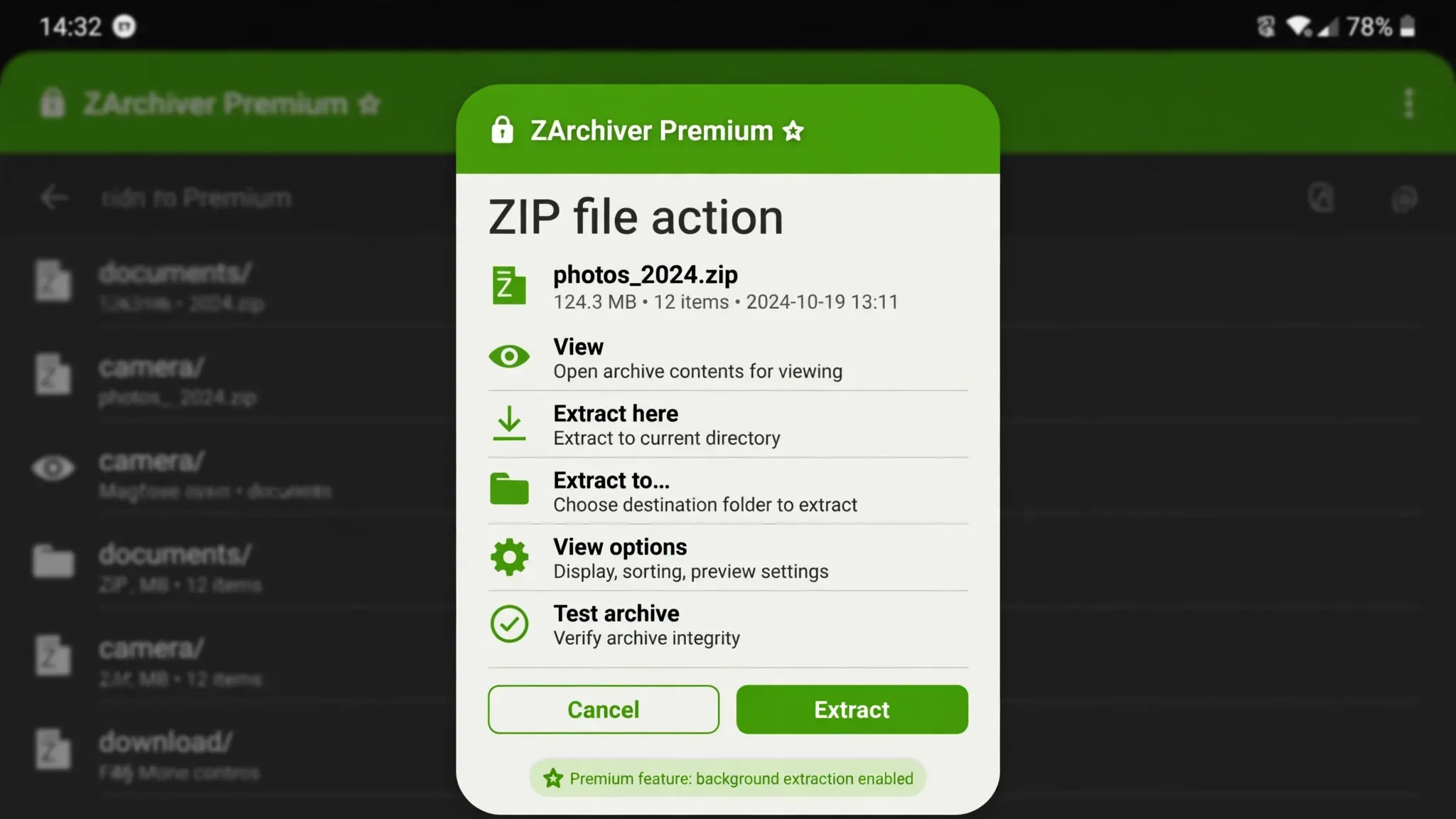
Step 4: Tap the ZIP File to View Extraction Options
Once you find your ZIP archive, tap it once to open the available actions. ZArchiver displays options such as View, Extract here, Extract to ./Archive name/, and Extract…. If you’re learning how to open ZIP file in ZArchiver, select View to check the contents without extracting them.
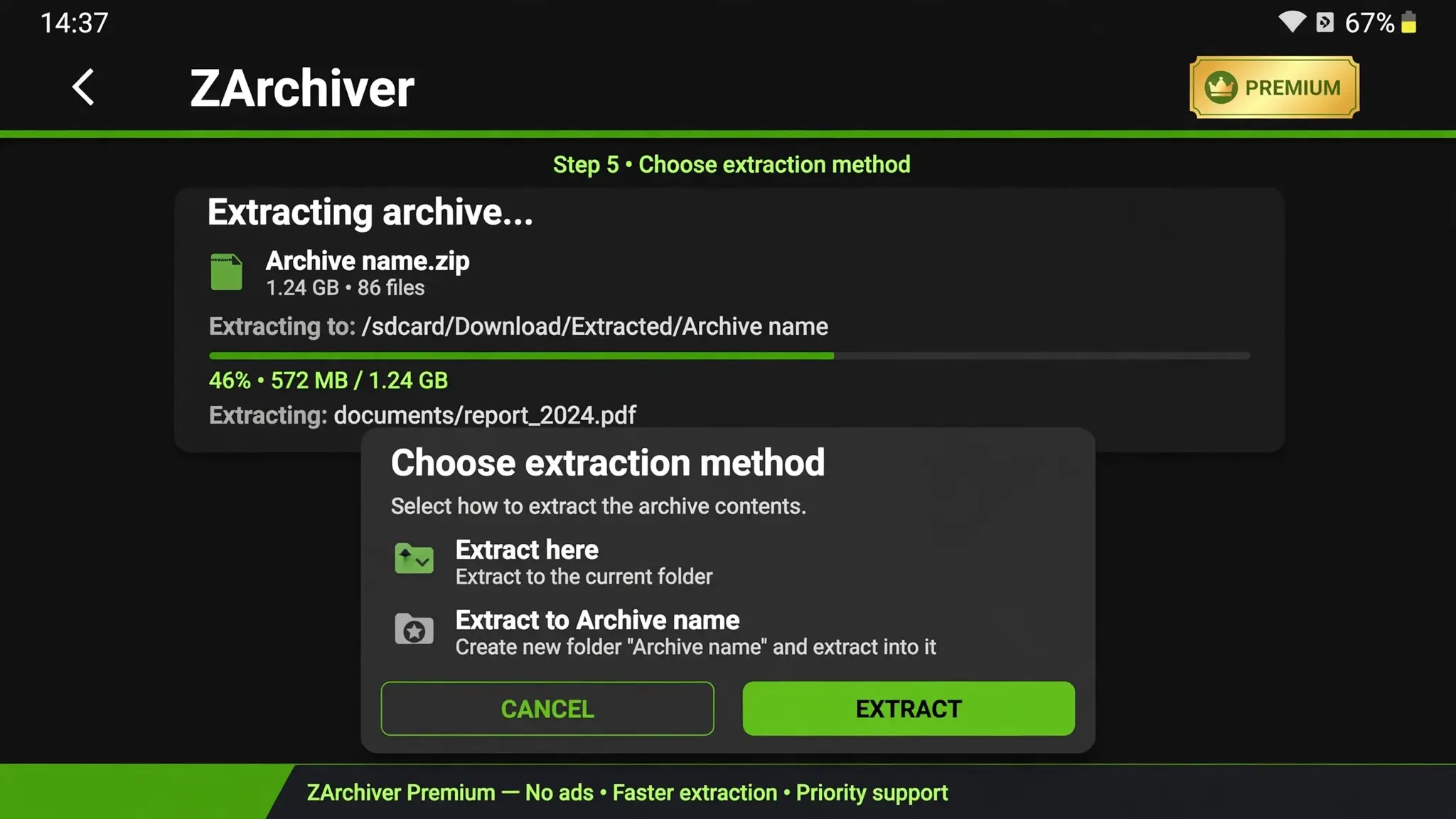
Step 5: Choose an Extraction Method
Select an extraction option depending on where you want to save the files. Extract here saves the contents in the current folder, while Extract to ./Archive name/ creates a separate folder named after the archive. You can also choose Extract… to select another destination. Confirm the destination if prompted and allow ZArchiver to finish extracting the files.
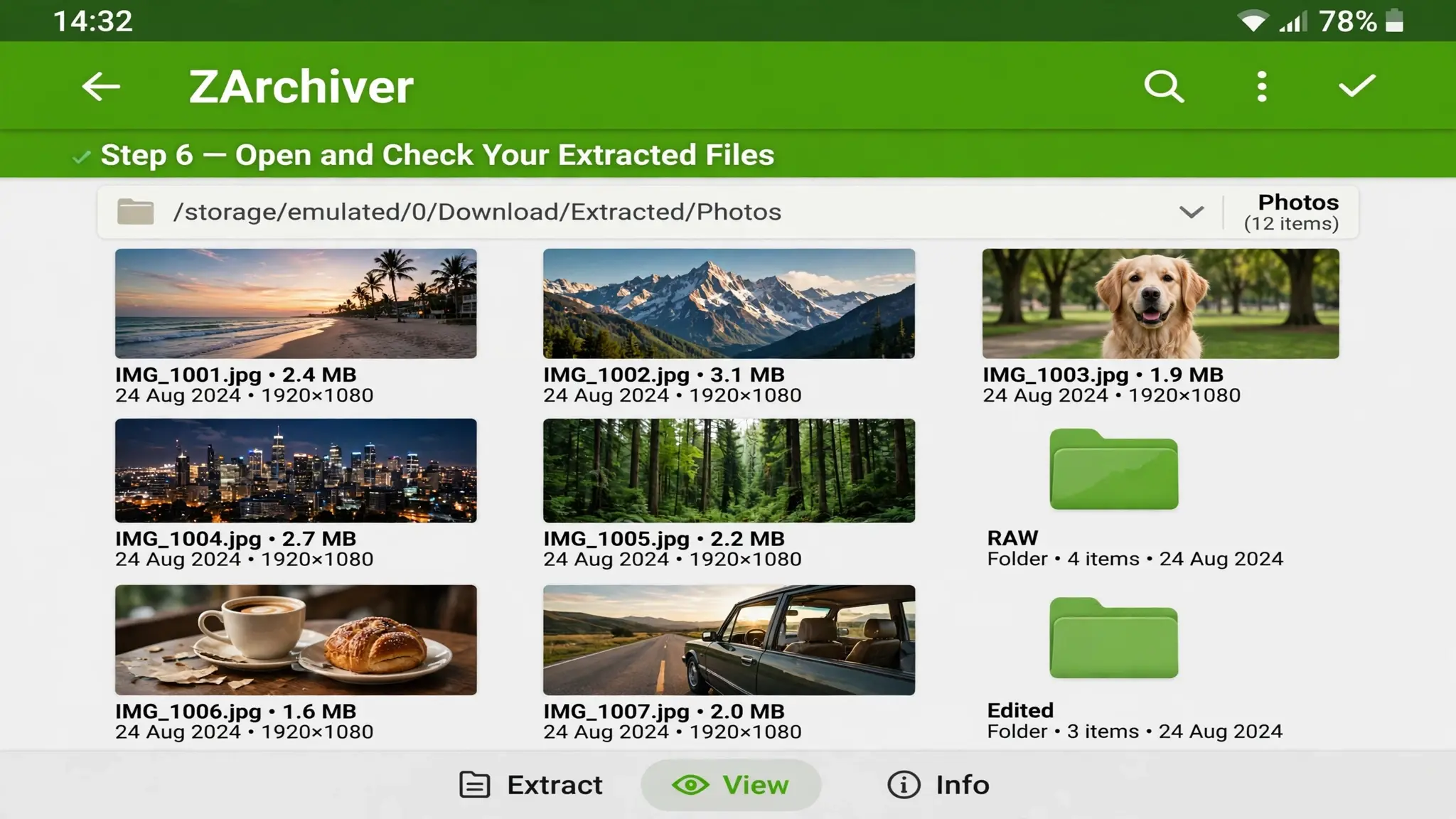
Step 6: Open and Check Your Extracted Files
After extraction finishes, open the destination folder to find your uncompressed files. For example, if you extracted Photos.zip into a new folder, open the Photos folder to view its contents. You can now open, move, share, or organize the extracted files using ZArchiver or another compatible Android app.
How to Extract a Password-Protected ZIP File in ZArchiver
Some ZIP archives require a password before you can access their contents. ZArchiver makes it easy to extract these protected files on your Android phone, provided you have the correct password. If you want to open a password-protected ZIP file in ZArchiver, follow these four simple steps.
Step 1: Locate the Password-Protected ZIP File
Open ZArchiver and navigate to the folder containing your ZIP archive. For example, if you downloaded the file from a website, check your phone’s Download folder. Tap the archive to display the available options.
Step 2: Choose an Extraction Option
Select Extract Here, Extract to ./Archive name/, or Extract…, depending on where you want to save the extracted files. ZArchiver will display a password prompt when it needs the archive password.
Step 3: Enter the Correct ZIP Password
Type the password provided by the person who shared the file or the website where you downloaded it. Enter every character carefully, including uppercase and lowercase letters, numbers, and special symbols. Remember that an archive password is different from your phone’s screen-lock password.
Step 4: Confirm and Extract Your Files
After entering the correct password, tap OK to start the extraction process. Wait for ZArchiver to finish, then open the selected destination folder to access your photos, documents, or other extracted files.
Having trouble with the password? Check for typing mistakes, extra spaces, or incorrect capitalization. If the password still doesn’t work, ask the sender or original file source for the correct one. ZArchiver cannot reveal or recover a forgotten archive password.
Where Are Extracted ZIP Files Saved in ZArchiver?
If you’re wondering, “where are extracted files saved in ZArchiver?”, the answer depends on the extraction option you choose. ZArchiver can save files in the same folder as the ZIP archive, create a separate folder, or extract them to a location you select.
Extract Here
When you select Extract Here, ZArchiver saves all extracted files in the same folder where the ZIP archive is stored. For example, if your ZIP file is in the Download folder, its extracted contents will also appear there.
Extract to a New Folder
Choose Extract to ./Archive name/ to create a separate folder using the ZIP file’s name. The extracted files are saved inside that new folder, keeping them separate from other downloads.
Extract to a Custom Location
Select Extract… when you want to choose a different destination. Browse to the folder where you want to save the files, select it, and confirm the extraction.
Example: Finding Extracted Files in the Download Folder
Suppose you have a ZIP file named Photos.zip in your Android Download folder. Here’s where its contents will go with each option:
Extraction option |
Saved location |
|---|---|
|
Extract Here |
Download |
|
Extract to ./Photos/ |
Download/Photos |
|
Extract… |
The folder you select |
So, where do extracted ZIP files go on Android? They go to the location selected during extraction. If you cannot find them, reopen ZArchiver and check the destination folder you chose. Also, look for a new folder with the archive’s name if you selected the separate-folder option.
How to Fix ZIP Files Not Extracting in ZArchiver
If a ZIP file is not extracting in ZArchiver, the problem may be caused by an incomplete download, a damaged archive, an incorrect password, insufficient storage, or restricted folder access. Check the common causes below to find out why extraction is failing and what to try first.
ZIP File Is Corrupted or Incomplete
A ZIP file may fail to extract if it was not downloaded completely or became damaged during transfer. You might see an error such as Unexpected end of archive or CRC error. First, check whether the download finished and compare the file size with the expected size, if available.
If you’re trying to find out how to extract a corrupted ZIP file on Android, start by downloading a fresh copy from the original source. If the archive is genuinely damaged, ZArchiver may not be able to recover all its contents.
Not Enough Storage Space
ZArchiver needs enough free storage to save the extracted files. Even when the ZIP archive is small, its uncompressed contents may require considerably more space. Check your phone’s available storage before trying again. If necessary, remove unwanted files or select another destination with enough free space.
Incorrect Password
If the ZIP archive is password-protected, ZArchiver cannot extract its contents without the correct password. Check for typing mistakes, extra spaces, and incorrect uppercase or lowercase letters. If the password still does not work, ask the sender or check the original download source for the correct one.
Storage Permission or Extraction Folder Error
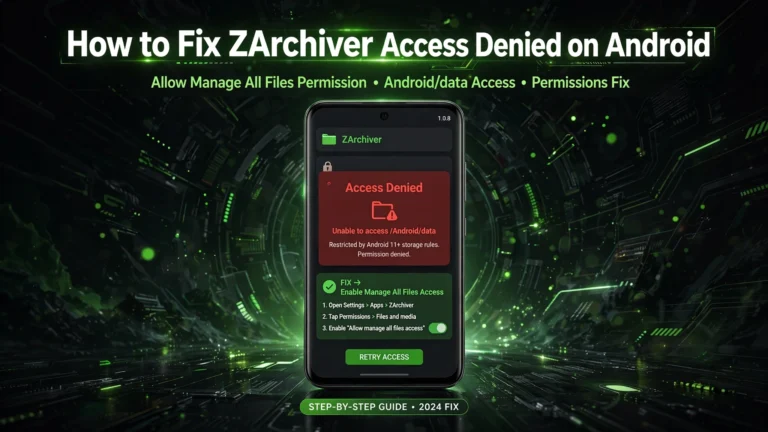
Sometimes, extraction fails because ZArchiver cannot access the selected destination folder. Android may restrict access to certain locations, or the folder may not allow files to be saved. Try extracting the ZIP file to an accessible folder, such as Download. If you see an Access Denied message, follow our ZArchiver Access Denied troubleshooting guide for more detailed instructions.
Quick Checks for ZIP Extraction Problems
Problem |
Saved location |
|---|---|
|
Corrupted or incomplete ZIP file |
Check the download and try downloading a fresh copy |
|
Not enough storage space |
Check your phone’s available storage |
|
Incorrect password |
Confirm the password with the sender or original source |
|
Storage permission error |
Check ZArchiver’s access to the selected folder |
|
Extraction folder error |
Choose another accessible destination |
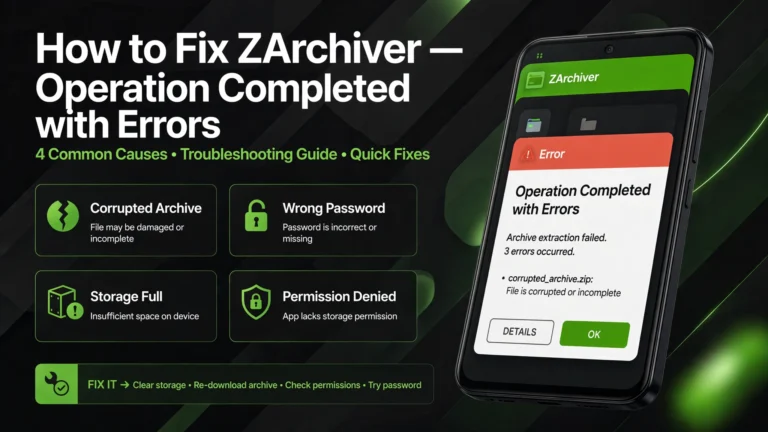
If the ZIP file still will not extract, check the exact error message shown by ZArchiver. For an Operation Completed with Errors message, see our dedicated troubleshooting guide for more specific solutions.
Frequently Asked Questions

Conclusion
Extracting ZIP files with ZArchiver on Android is simple once you know which extraction option to use. Choose Extract Here to save files in the current folder, create a separate folder, or select a custom destination to keep everything organized. For more details and the app download, visit our ZArchiver APK page.