How to Fix ZArchiver Access Denied on Android
Are you seeing an Access Denied error in ZArchiver when opening a folder, copying files, extracting an archive, or accessing Android/data? The problem can happen because of missing file permissions, a restricted Android folder, an SD card issue, or a problem with a particular file. The correct ZArchiver Access Denied fix depends on where the error appears and which Android version your device is running.
Start by checking whether the error affects ordinary folders or only Android/data and Android/obb. This distinction can save you from repeating permission changes that will not solve a system-level restriction.
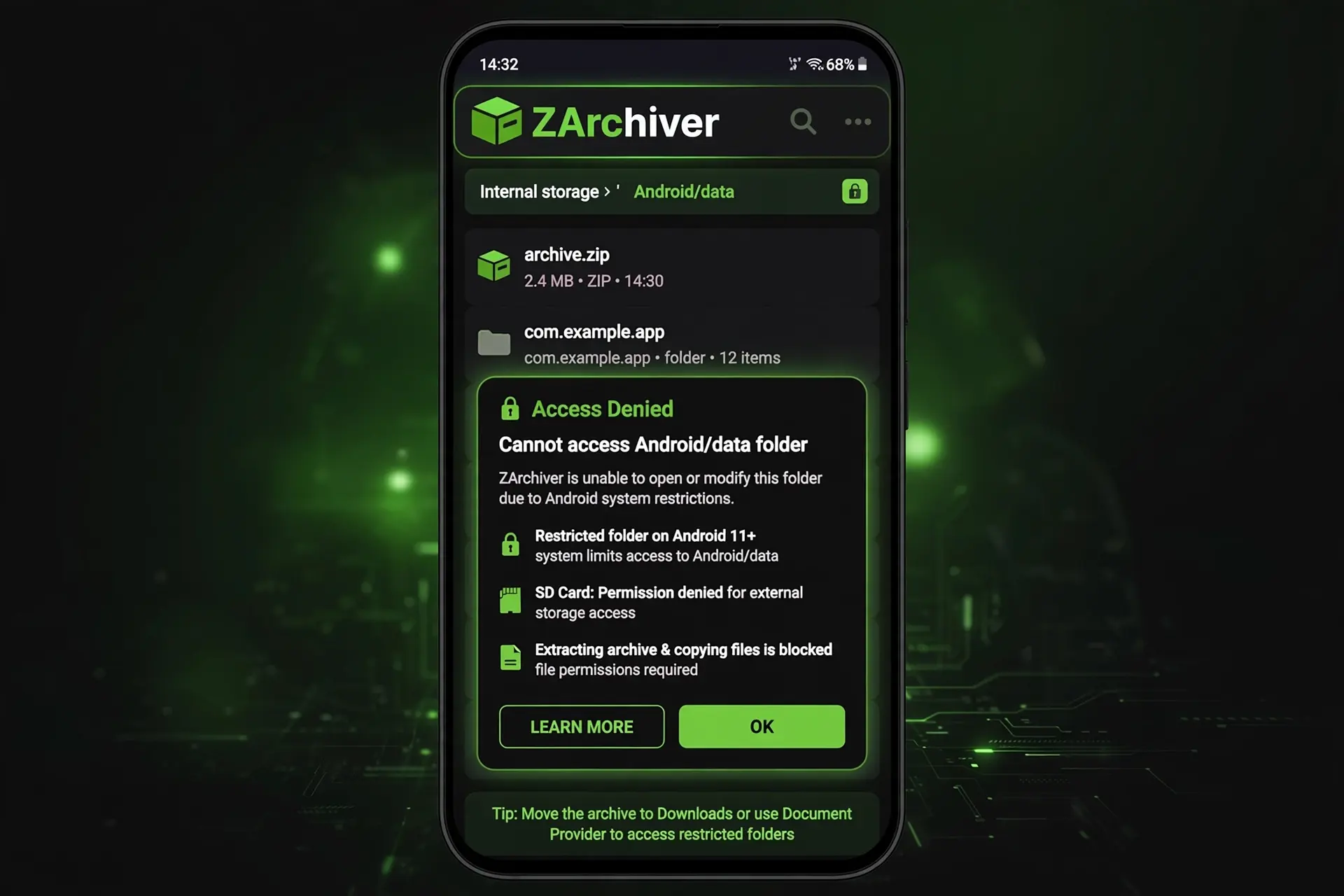
Quick Answer: How to Fix ZArchiver Access Denied
First, check ZArchiver’s available file permissions and try opening an ordinary folder such as Downloads. If that works but Android/data or Android/obb still displays an access restriction, Android’s storage rules may be responsible. On newer Android versions, ordinary file permission may not provide unrestricted access to protected app folders.
For a detailed explanation of the app itself, visit our ZArchiver APK guide.
Why Does ZArchiver Show Access Denied?
An Access Denied error in ZArchiver means the app cannot perform the requested action in the selected location. It does not automatically mean the app is broken or the APK is damaged.
Common causes include:
Identify the affected folder before following the fixes below. This is the most useful first step when looking for a ZArchiver Access Denied problem solution.
How to Fix ZArchiver Access Denied
Try the following solutions in order. The names of settings may vary slightly depending on your Android version and phone manufacturer.
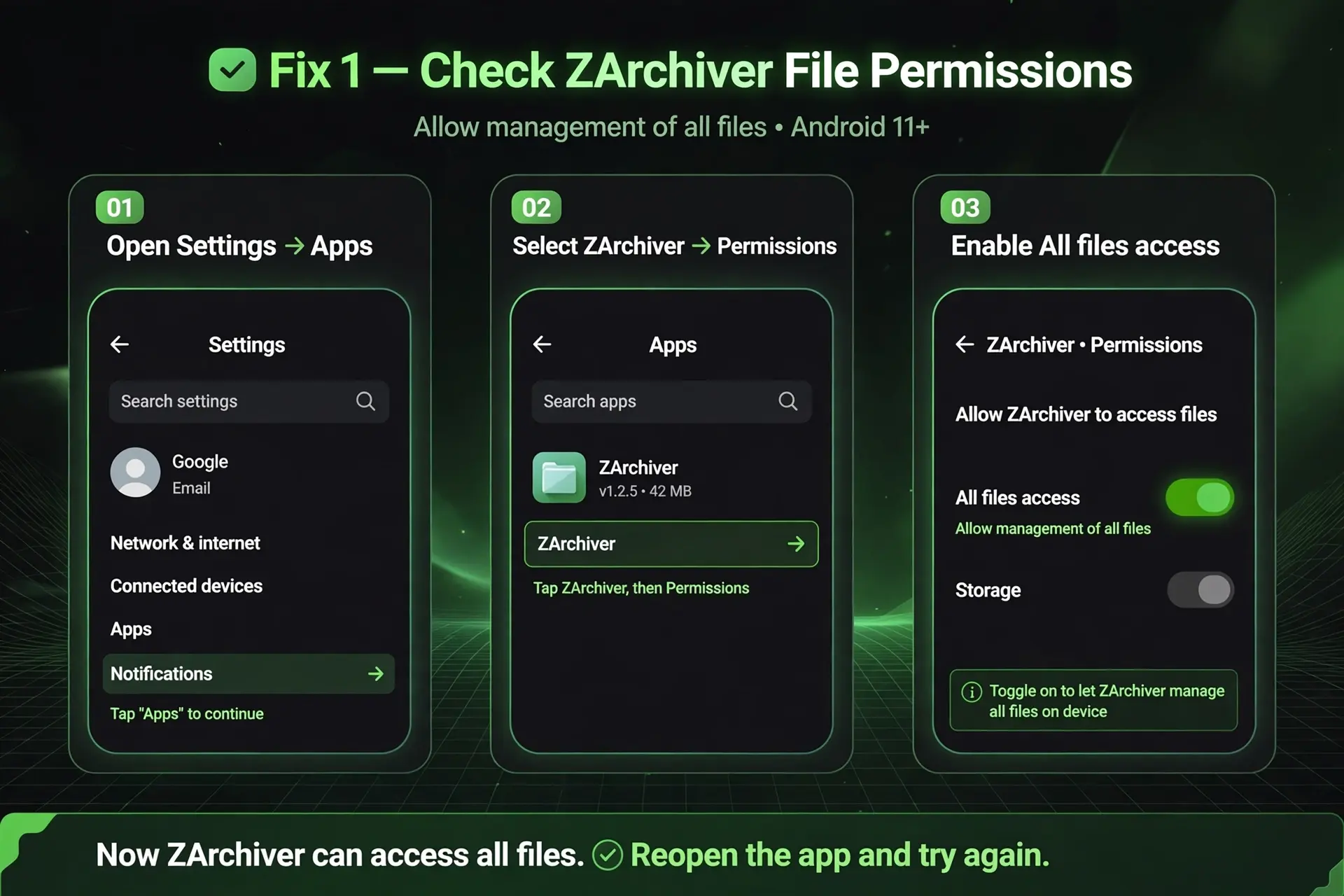
Fix 1: Check ZArchiver File Permissions
If ZArchiver cannot access ordinary folders, start with its available permissions.
- Open Settings on your phone.
- Select Apps or Applications.
- Find and open ZArchiver.
- Open Permissions and review the options available on your device.
- If the required file or media permission is denied, allow it where appropriate.
- Return to ZArchiver and try opening the same folder again.
Some devices also provide an All files access or Allow management of all files setting under special app access. If this option is available for ZArchiver, check whether it is enabled as required.
The exact menu names can differ between Samsung, Xiaomi, and other Android devices. More importantly, All Files Access does not remove every Android storage restriction. If ZArchiver still cannot open Android/data or Android/obb, continue to Fix 2.
Fix 2: Check Android/data and Android/obb Restrictions
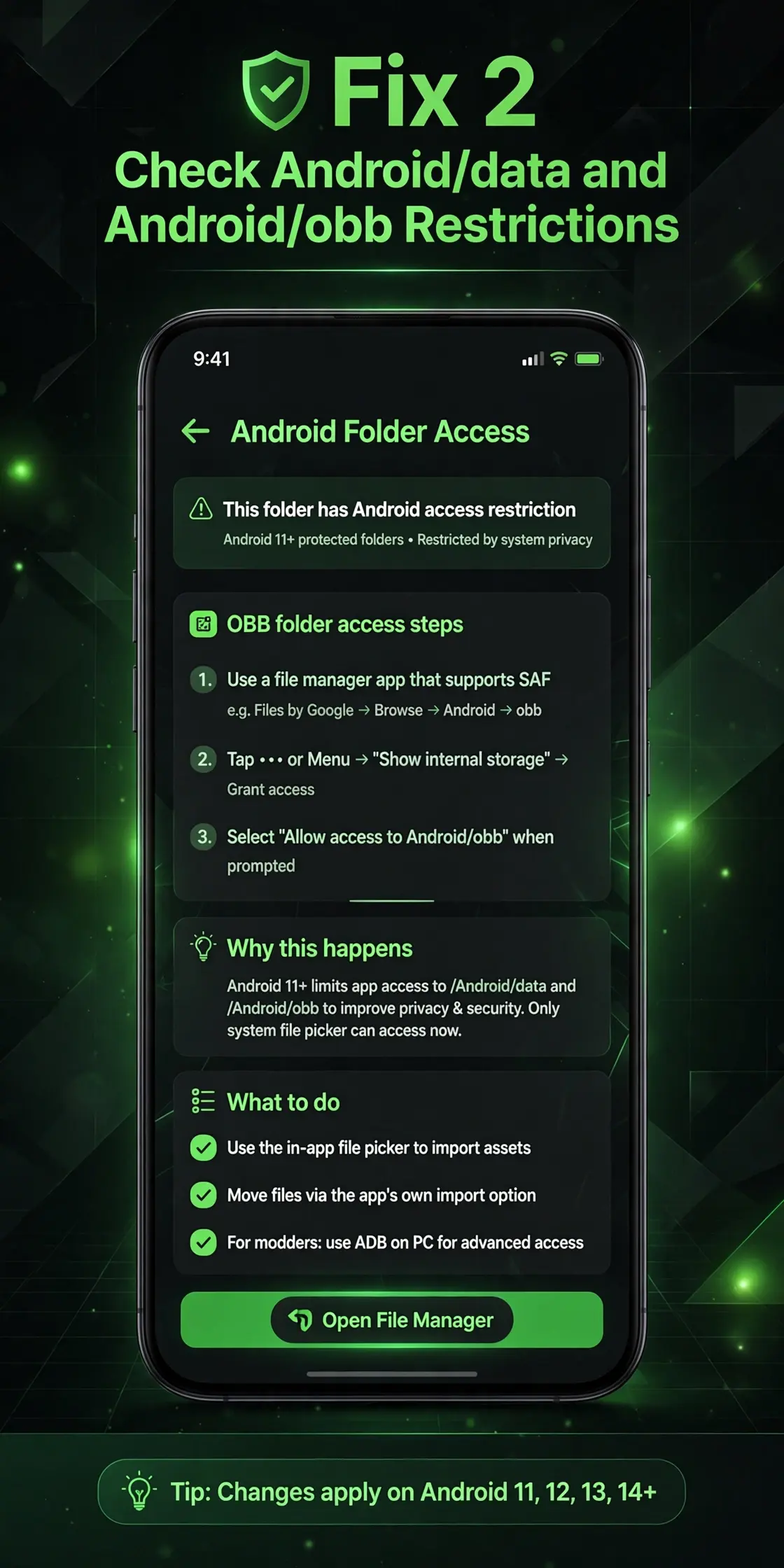
If ZArchiver says Access Denied only when you open Android/data or Android/obb, the issue may be caused by Android’s protected-folder rules rather than a normal permission problem.
These folders can contain application-specific data. Android 11 and later restrict access to these locations through standard file-selection methods, and the available workarounds can depend on the Android version and installed security updates.
How to Fix ZArchiver Access Denied in Android/data
Try these checks:
- Open ZArchiver and navigate to the folder you need.
- If Android opens its system file picker, check that it is showing the correct folder.
- Follow the permission prompt if Android allows you to grant access to that location.
- If the folder is unavailable or the system blocks the selection, do not keep repeating the same permission steps.
- Check whether the app that owns the data provides a built-in way to import, export, back up, or restore the files.
If the message says “This folder has an Android access restriction,” it usually indicates that the operating system is restricting the requested action. It is not necessarily a ZArchiver fault.
What If ZArchiver Cannot Access the OBB Folder?
The Android/obb folder is used by some Android games and applications for expansion data. If you receive a ZArchiver Access Denied error in OBB, check the available folder permissions and follow any supported system prompt.
If Android refuses to grant access, the standard folder picker may not be sufficient. For practical instructions on locating and moving supported OBB files, read our How to Extract OBB Files Using ZArchiver on Android guide.
Do not assume that every game needs a separate OBB file. Many newer apps download and manage their additional data automatically.
What Does “This Folder Has an Android Access Restriction” Mean?
This message means Android is limiting the operation you are attempting in that location. It does not necessarily mean your APK is outdated. Some folder operations may remain unavailable even after you grant ordinary file access.
For additional technical details, see the official ZArchiver storage-permissions guide and its Android/data and Android/obb documentation.
Fix 3: Understand ZArchiver Access Denied on Android 11, 12, 13, 14, 15, and 16
The fix can vary according to the Android release, manufacturer, and security patch installed on your device. The version numbers alone do not tell you which method will work.
Android version |
What to check |
|---|---|
|
Android 11 |
Check file permissions and understand the system restrictions on |
|
Android 12 |
Check whether the device allows folder access through its system picker. |
|
Android 13 |
Check the specific folder, available permissions, and supported methods for accessing protected directories. |
|
Android 14 |
Do not assume that All Files Access removes protected-folder restrictions. |
|
Android 15 |
Check the current system permissions and security-patch behaviour before trying a workaround. |
|
Android 16 |
Confirm the precise folder and device behaviour; a method that worked on an earlier release may no longer work. |
The restrictions on Android/data and Android/obb became significant with Android 11, while later releases and security updates can affect the available workarounds. ZDevs also documents a limitation involving the March 2024 security patch on Android 11 and later, so older online instructions may not work on every updated device.
If you are searching for a ZArchiver Access Denied Android 11, 12, 13, 14, 15, or 16 fix, start with the folder where the problem occurs. Use the steps in Fix 1 for ordinary folders and Fix 2 for protected directories. There is no single permission switch that guarantees access to every protected folder on every Android version.

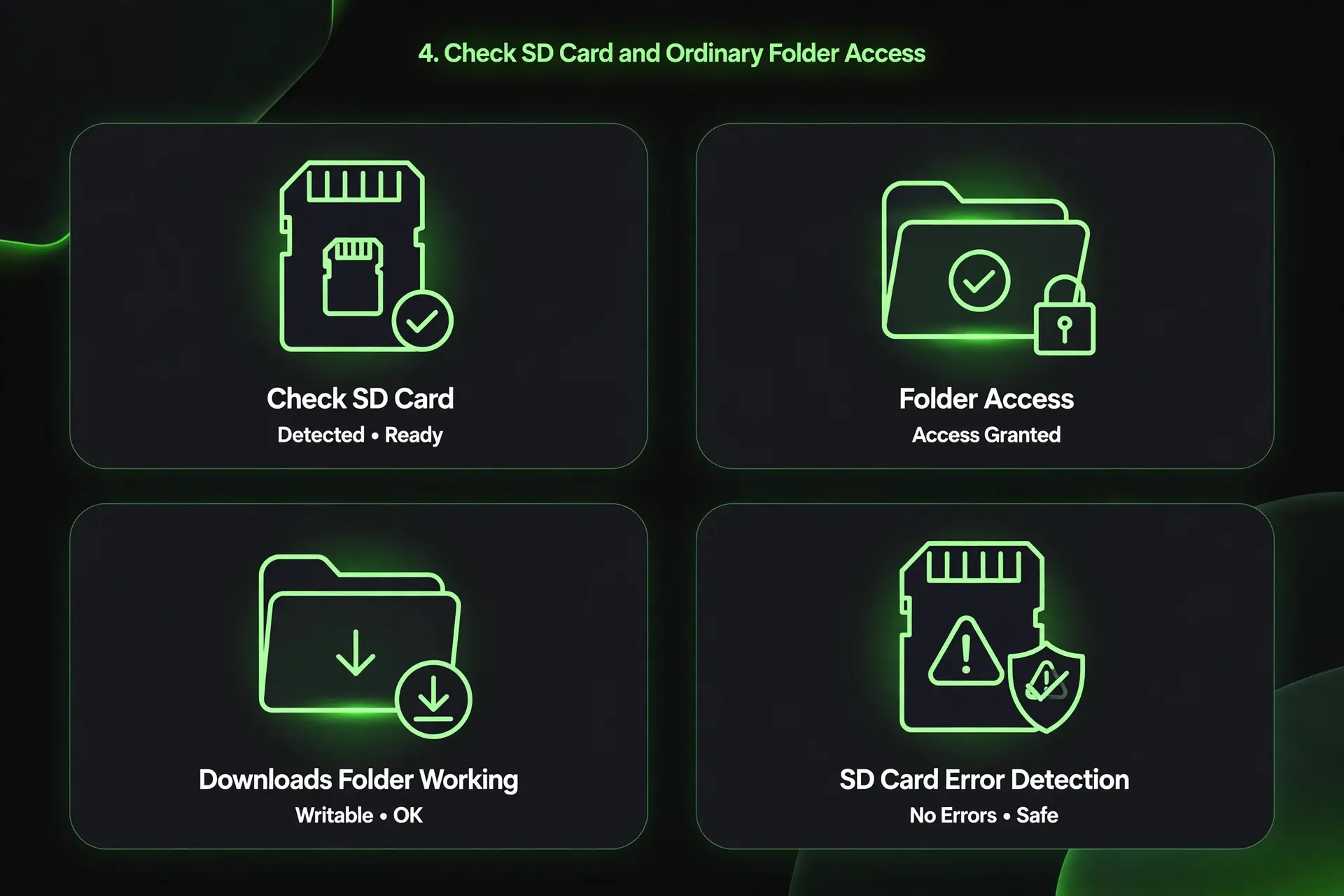
Fix 4: Check SD Card and Ordinary Folder Access
A ZArchiver folder access denied error can also occur when you work with an SD card or a particular destination folder.
- Open your phone’s file manager and check whether the SD card is detected.
- Browse to the folder you want to use and confirm that it can be opened.
- If Android requests permission for that location, follow the supported access process.
- Check whether the storage device is full, read-only, disconnected, or reporting errors.
- Return to ZArchiver and try the operation again.
If the error happens while copying or moving files, try a normal folder under Downloads that you can access. If the operation works there but not in the original destination, the destination’s permissions or restrictions may be the cause.
If multiple apps have trouble reading or writing the same SD card, investigate the card itself before assuming ZArchiver is responsible. Back up important data before attempting repairs or formatting.
Fix 5: Restart ZArchiver and Check for App Problems
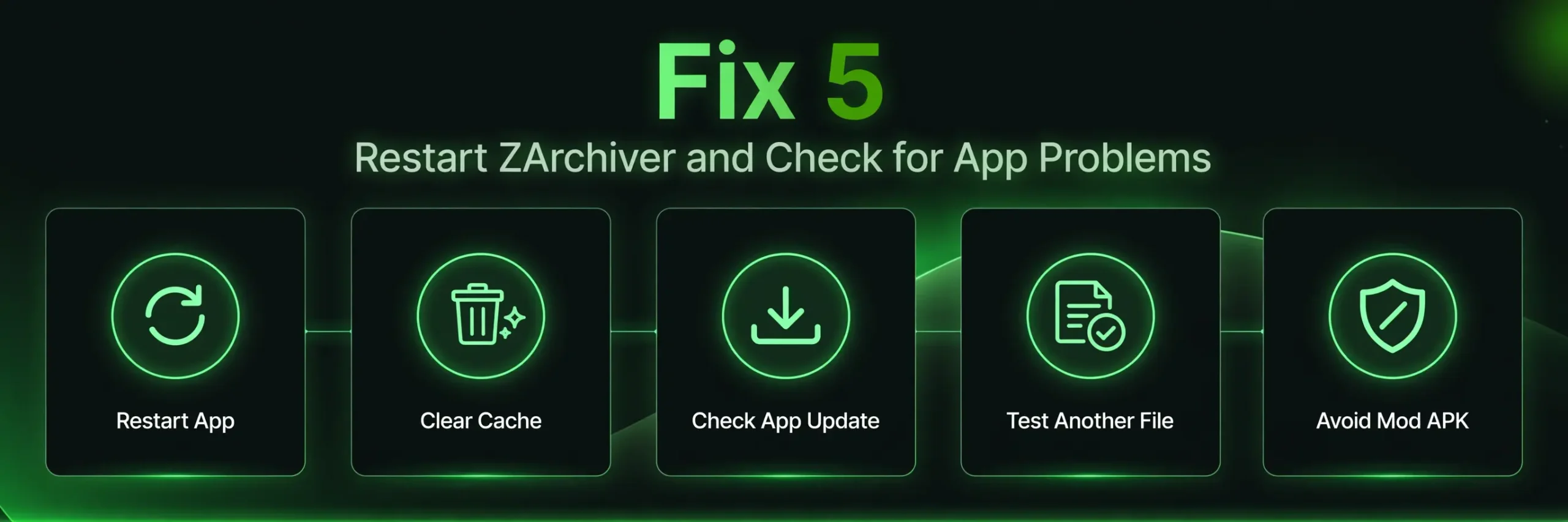
If ordinary folder access worked previously but ZArchiver access denied errors started after an update, check the app and file first.
- Close ZArchiver and open it again.
- Restart your phone if the issue continues.
- Check whether a compatible update is available from a trusted source.
- If the error affects ordinary folders, review the app permissions again.
- If only one archive fails, test another file in the same accessible folder.
You can also clear ZArchiver’s cache if your device offers that option under Settings → Apps → ZArchiver → Storage. Avoid choosing Clear storage or Clear data without understanding the consequences, because these options may remove local app settings or information.
Can a ZArchiver APK Update Fix Access Denied?
An update may help if the issue is caused by an app bug or compatibility problem. However, downloading a new APK does not automatically remove Android’s protected-folder restrictions.
If you searched for ZArchiver Access Denied APK or ZArchiver Mod APK Access Denied latest version, do not assume that a modified APK will fix the issue. A third-party file may be outdated or altered, and changing the APK will not necessarily change the operating system’s access rules.
If you have a clear reason to investigate version compatibility, consult our ZArchiver Old Versions page. Verify the file source and compatibility before installing an older release; an old version is not a universal solution for storage restrictions.
Fix 6: How to Fix ZArchiver Access Denied Using Shizuku
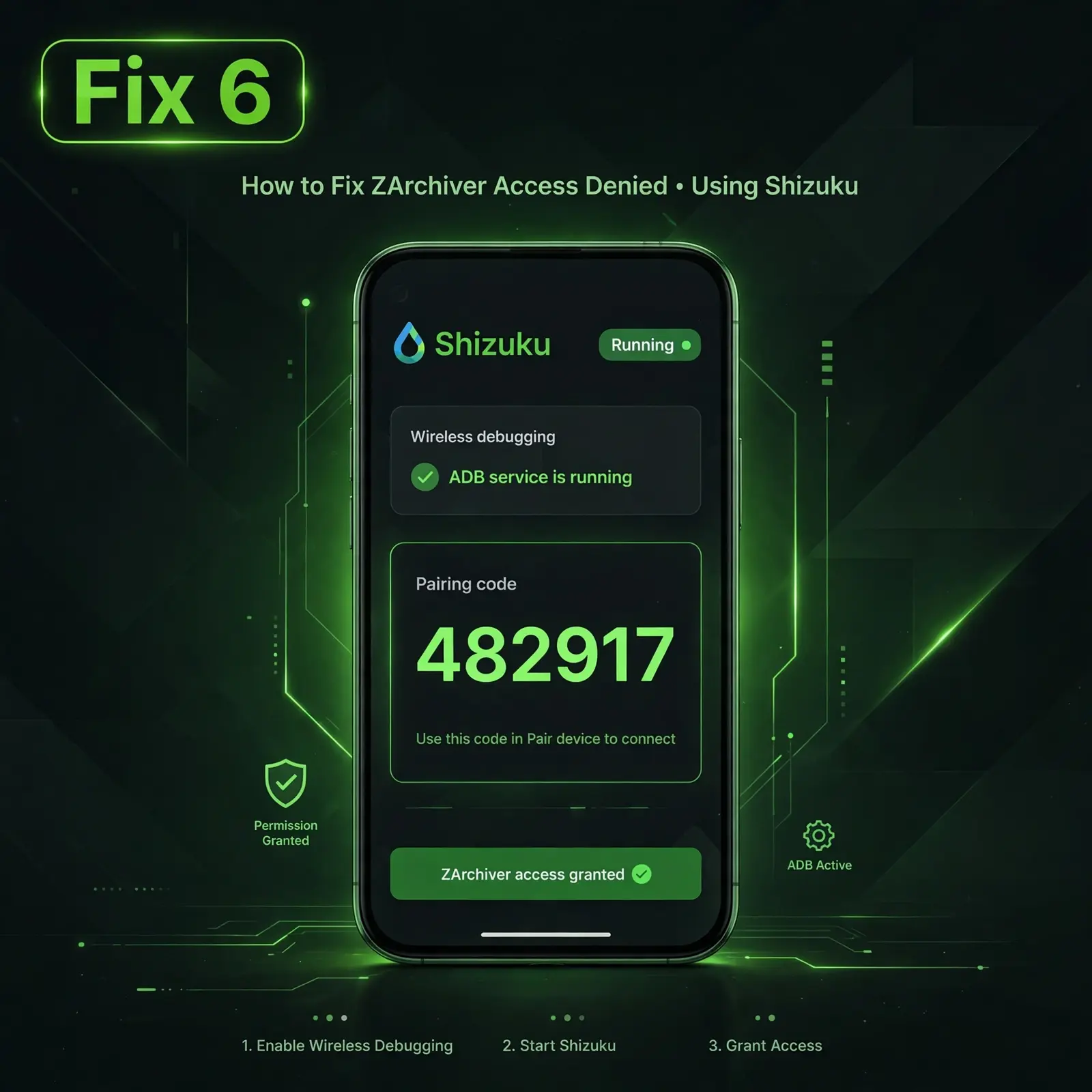
Shizuku is an Android tool that lets compatible applications use certain system APIs through a service started with elevated ADB permissions. It can be useful for supported file operations on some devices without requiring root access, but it does not guarantee that every restricted file or folder will be accessible.
Basic Shizuku Setup
On Android 11 and later, Shizuku can be started using Wireless debugging without connecting the phone to a computer.
- Install Shizuku from a trusted, official source.
- Enable Developer options on your device.
- Enable Wireless debugging.
- Open Shizuku and start its pairing process.
- Use Android’s Wireless debugging screen to pair with the displayed pairing code.
- Return to Shizuku and start the service.
- Open ZArchiver settings and select Settings → ROOT → Type of root access → Shizuku, if that option is available in your installed version.
- Grant the requested permission only when you understand which application is asking for it.
Follow the official Shizuku setup guide for the exact steps. Menu names can differ between devices, and some manufacturer-specific settings may affect setup.
Important: Shizuku’s wireless-debugging service generally needs to be started again after the phone reboots. Open Shizuku and check that its service is running before troubleshooting ZArchiver again.
If Shizuku is running but ZArchiver still displays Access Denied, confirm that ZArchiver is configured to use Shizuku and that permission was granted. The restriction may also relate to the exact folder, device, or system version. Shizuku is not a guaranteed fix for every access problem.
Fix 7: Can You Fix ZArchiver Access Denied Without Root or Shizuku?
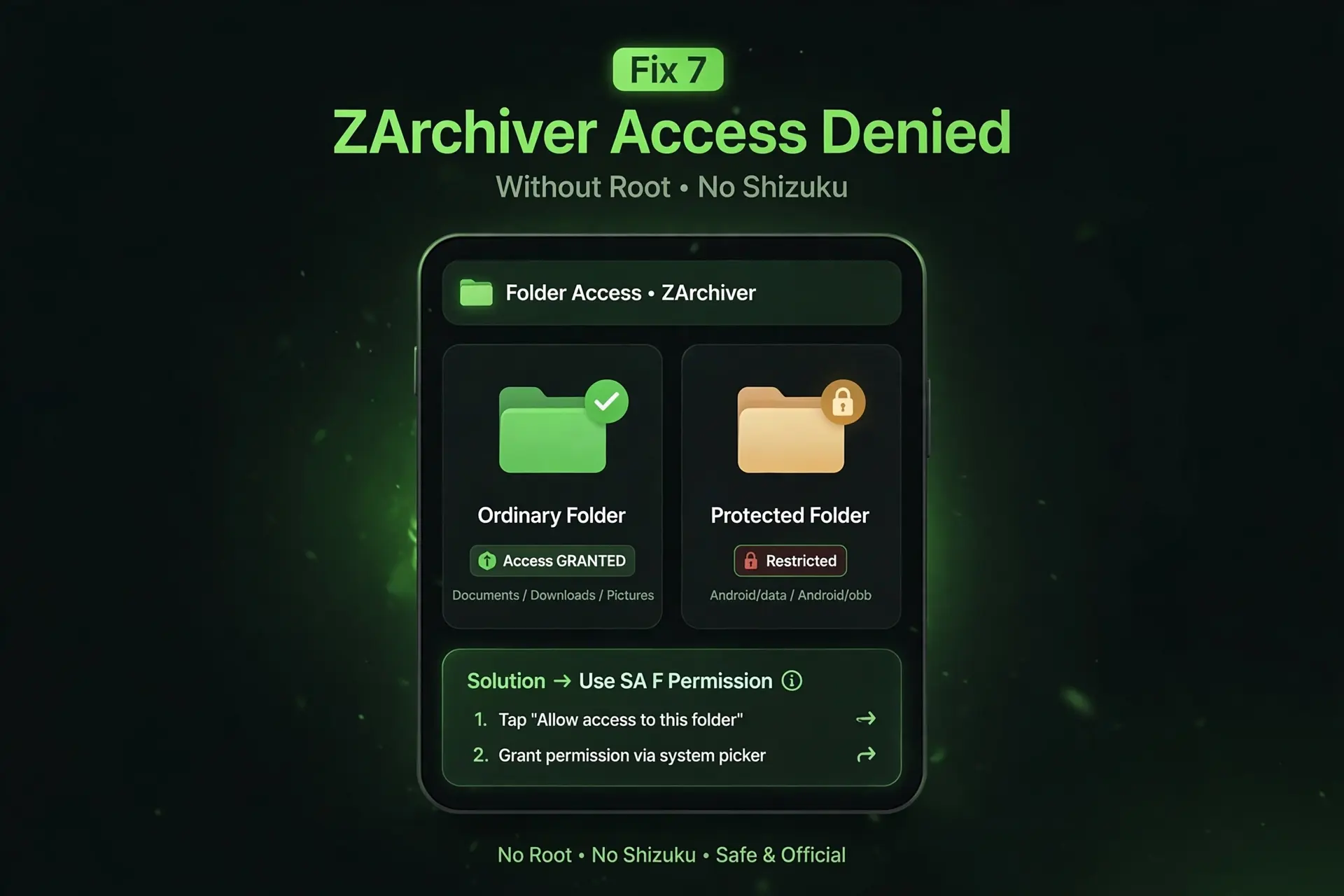
Some access errors can be fixed without root or Shizuku. For ordinary folders, granting the required file permission or choosing an accessible destination may be sufficient. An SD card issue may also be resolved by restoring normal access to the card.
However, there is no universal no-root or no-Shizuku method that guarantees unrestricted access to every Android/data or Android/obb folder. Android’s restrictions and the installed security patch determine which methods are available on a particular device.
If you are looking for a ZArchiver Access Denied bypass, focus on supported ways to access your files rather than disabling security protections or installing an unverified APK. When Android blocks the requested operation, use the owning app’s built-in file-management options or another method documented for your device.
What If ZArchiver Access Denied Still Appears?
Use this table to narrow down the next step instead of repeating every fix.
Where the error appears |
What to check next |
|---|---|
|
Downloads or ordinary folders |
Check ZArchiver’s file permissions and the selected destination. |
|
|
Check Android’s protected-folder restrictions and the supported access methods. |
|
|
Check the folder-specific access instructions for your Android version. |
|
SD card |
Verify that the card is detected and the destination is writable. |
|
One particular archive |
Check whether the file is complete, readable, and stored in an accessible location. |
|
After updating ZArchiver |
Review permissions, app compatibility, and the affected file or folder. |
|
After starting Shizuku |
Confirm that the service is running and ZArchiver has been authorized. |
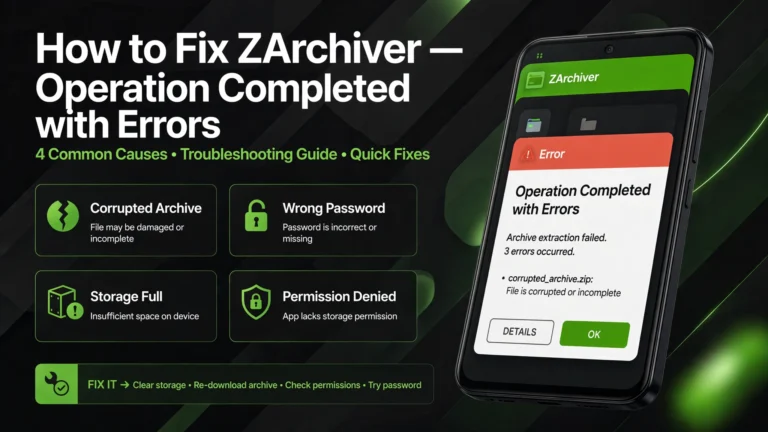
If the error appears during extraction and the message says “Operation Completed with Errors,” the issue may involve a damaged archive, incorrect password, missing archive part, or inaccessible destination. Read our How to Fix Operation Completed with Errors in ZArchiver guide for those cases.
For related file-management instructions, see our ZArchiver for PC guide. It explains how file access works when running the Android app inside a compatible environment on a computer.
Common Mistakes to Avoid
Confusing APK Installation Permission With File Access
Install unknown apps allows an authorized app, such as your browser, to install APK files from that source. It does not grant ZArchiver general access to protected folders. These are separate Android settings.
Repeatedly Changing Permissions for a Protected Folder
Granting ordinary file access several times will not necessarily solve an Android/data or Android/obb restriction. Confirm which folder is affected before changing settings again.
Clearing App Data Without a Backup
Clearing storage or uninstalling an app may remove local data and settings. Try less destructive troubleshooting first and keep backups of important files.
Downloading Modified APKs to Fix Permissions
An access error does not automatically mean your app installation is damaged. Avoid downloading modified APKs from unverified websites or disabling security protections just to get around a folder-access message.
Frequently Asked Questions
Conclusion
The right ZArchiver Access Denied fix depends on the location and operation that triggered the error. Check ordinary file permissions first, then investigate Android/data and OBB restrictions, SD card access, or app compatibility as needed. If you use Shizuku, make sure its service is running and ZArchiver has the required authorization. An APK update or a single permission switch will not solve every folder-access problem.