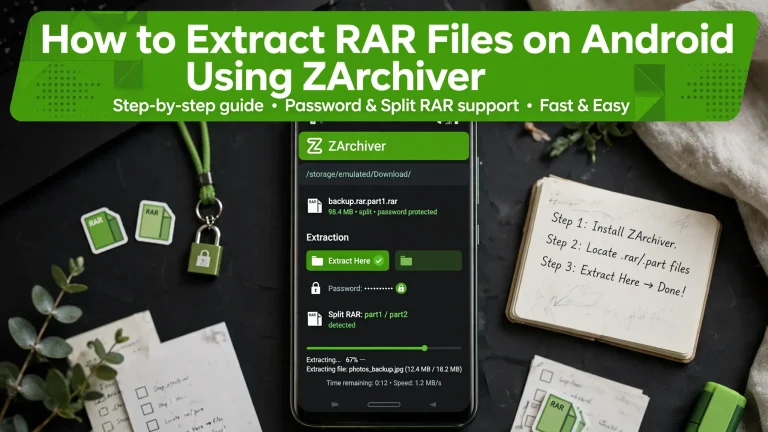
How to Extract OBB Files Using ZArchiver
Trying to extract an OBB file for an Android game but don’t know where to start? ZArchiver can help you unpack an archive containing an OBB file and manage the game data on your device. However, an .obb file usually does not need to be extracted itself. In most cases, you need to extract the ZIP or RAR archive containing it, then place the OBB file where the game expects it.
In this guide, you’ll learn how to identify OBB files, extract them using ZArchiver, find the correct destination folder, and troubleshoot common problems on different Android versions.

What Is an OBB File on Android?
An OBB file is an Android expansion file that can contain additional resources for an app or game, such as graphics, audio, maps, or other large assets. It is commonly associated with older Android game-distribution methods that used an APK for the app and a separate file for additional data.
An OBB file is not the same as an APK. An APK installs an Android application, while an OBB file supplies additional data that a compatible application may need to run correctly. Not every Android game uses OBB files; many modern apps obtain their resources through other delivery methods.
How to Extract OBB Files Using ZArchiver
Before starting, make sure the archive or OBB file belongs to a game you are authorized to use. Prefer the game’s official installation and download process whenever available.
Step 1: Locate the Downloaded File
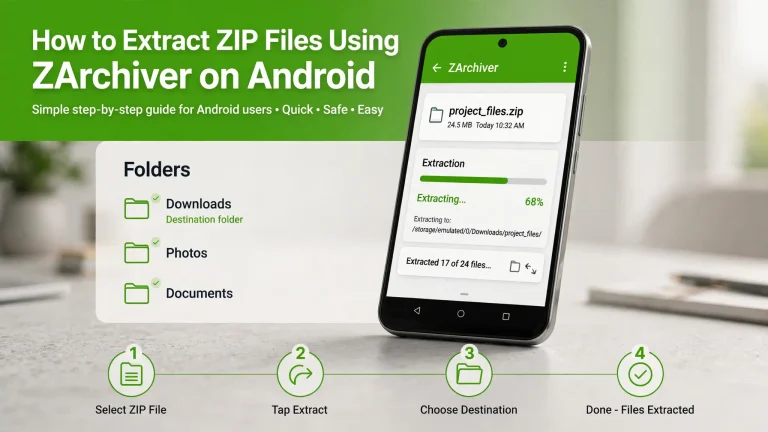
Open ZArchiver on your Android phone and navigate to the folder containing your downloaded file. Files downloaded through a browser are often stored in Internal Storage → Download or Downloads, although the location may differ on your device.
Check the filename and extension before continuing. You might find a ZIP or RAR archive containing an OBB file, or you might have downloaded an .obb file directly.

Step 2: Extract the ZIP or RAR Archive
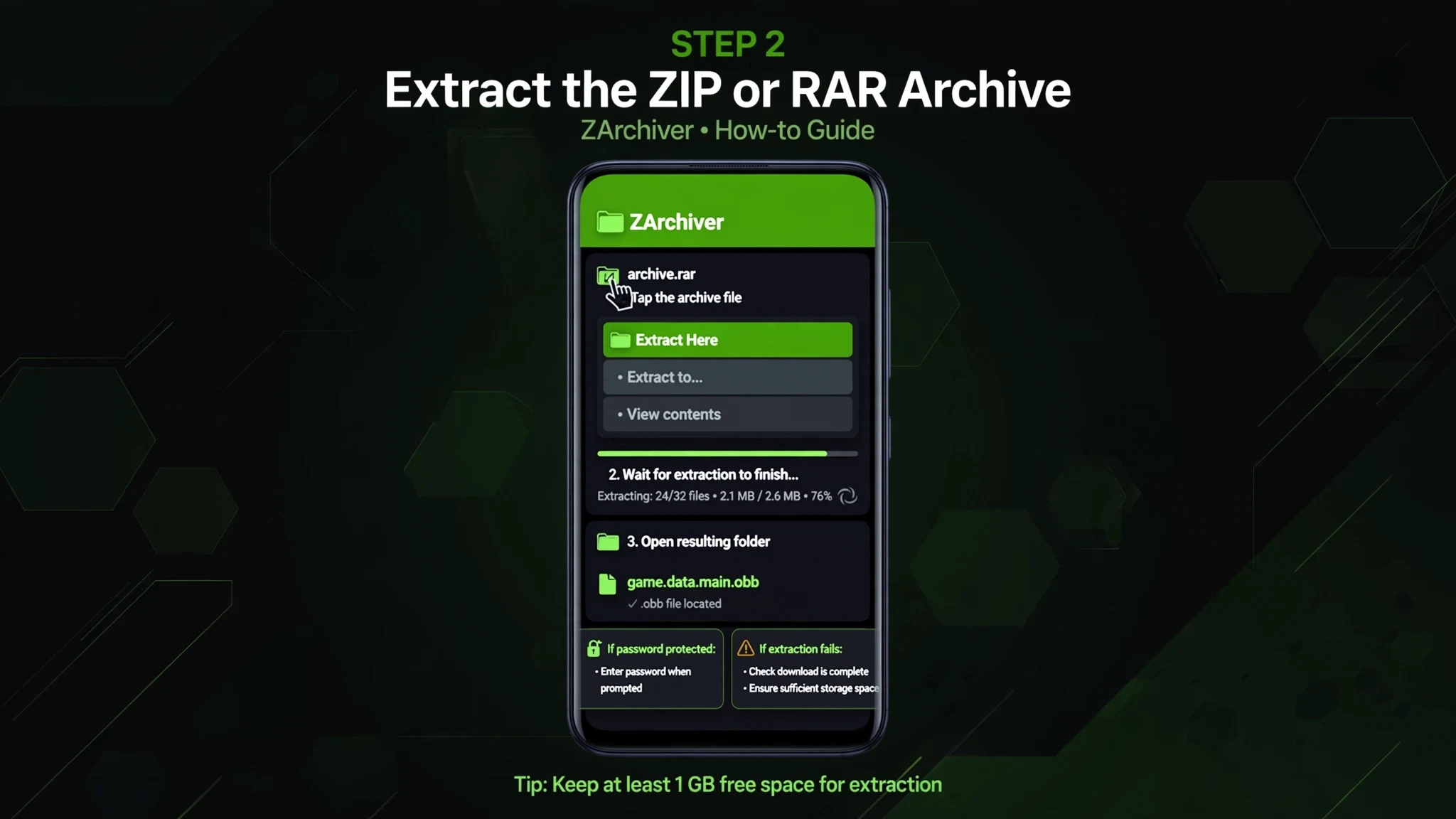
If your downloaded file ends in .zip or .rar and contains the OBB file, follow these steps:
- Tap the archive in ZArchiver.
- Choose Extract Here to unpack the contents in the current folder, or select an available extraction option to choose another destination.
- Wait for the extraction process to finish.
- Open the resulting folder and locate the
.obbfile.
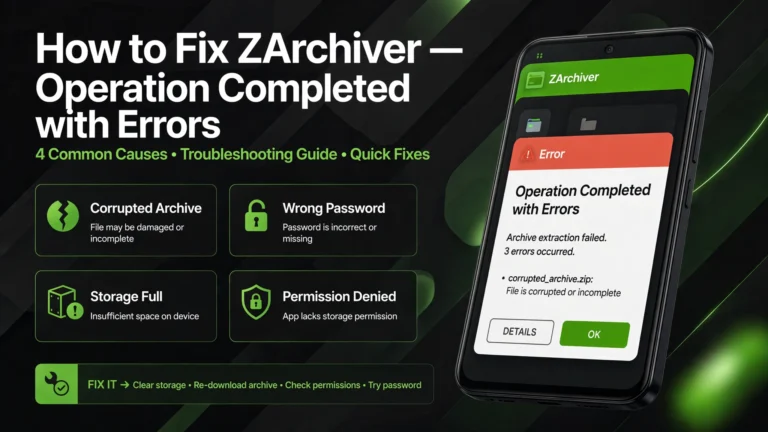
If the archive is password-protected, enter the password supplied by its creator. If extraction fails, check that the download is complete and that your device has sufficient free storage.
Step 3: Check the OBB Filename
Before moving the file, inspect its name. A typical Android expansion filename looks like this:
main.123.com.example.game.obb
This is only an illustrative example. The actual filename should match the game or app’s expansion-file details. Legacy expansion filenames generally include a main or patch prefix, a version code, and the application’s package name.
Do not rename the file simply to make it look like the example. An incorrect filename or a version that does not match the installed game may prevent the app from detecting its data.

Step 4: Find the Correct OBB Folder
When a game uses legacy OBB expansion files, the expected directory is generally:
Internal Storage/Android/obb/<package-name>/
The <package-name> part must be replaced with the actual package name of the game. For example, a game with the package name com.example.game would normally use:
Internal Storage/Android/obb/com.example.game/
Use the game’s official instructions or package information to identify the correct folder. Do not assume that every game uses the same directory name.

Step 5: Move or Copy the OBB File
If the game requires manual OBB placement and Android permits access to the destination:
- Return to the folder containing the extracted
.obbfile. - Select the file and choose Copy or Move.
- Navigate to
Android/obb/and open the folder for the correct game. - Paste the OBB file into that folder, keeping its required filename unchanged.
- Confirm that the file appears in the destination.
If the destination folder does not exist, follow the game’s instructions for creating it, provided Android allows the operation. Keep a backup of the original file until you confirm the game works.
Important: Do not extract the .obb file itself or rename it unless the game’s developer explicitly instructs you to do so. Most legacy expansion files are intended to be used by the application in their supplied form.

How to Install a Game That Uses APK and OBB Files
Some older game packages include an APK and a separate OBB file. When both are required, they must correspond to a compatible version of the same game.
Step 1: Install the Game
Use Google Play or another source authorized by the game’s developer whenever possible. If the game supports a separate APK and OBB installation, follow its instructions to install the correct application version.
Step 2: Place the OBB File
If manual OBB placement is supported, extract the containing archive and move the OBB file into the appropriate game-specific directory. Preserve the original filename and check that the package name matches the installed game.
Step 3: Open the Game and Check Its Data
Launch the game and allow it to complete any additional setup or downloads. If it reports missing resources, check the filename, destination, and game version.
Some modern games download and manage their data automatically. For those games, manually copying an OBB file may not work.
Why Can’t ZArchiver Access the Android/obb Folder?
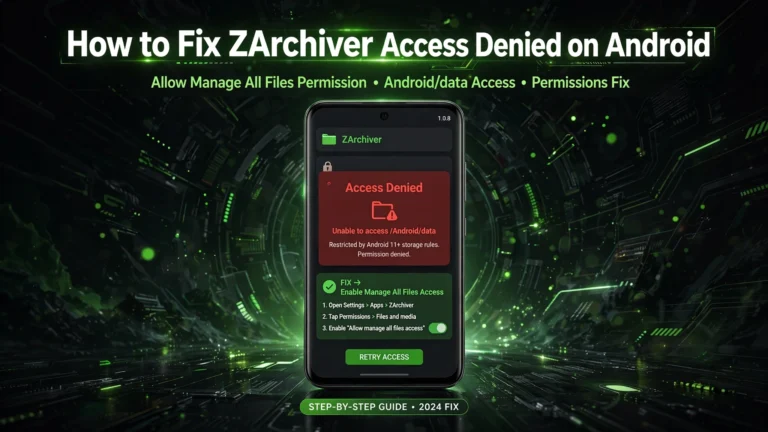
If ZArchiver displays Access Denied when you try to move an OBB file, Android’s storage restrictions may be responsible.
Android 11 and later restrict access to Android/obb through standard system file-selection methods. As a result, granting ordinary file permissions does not necessarily allow an app to access everything in this directory. <Cite refs={[“turn243779search0”]}/>
Try the following checks:
- Confirm that ZArchiver has the file permissions available on your device.
- Check whether the Android file picker allows access to the required destination.
- Use the game’s own installation, import, or data-download process when available.
- Avoid untrusted applications or security workarounds that promise unrestricted folder access.
There is no universal permission setting that guarantees manual OBB placement on every Android device.
If you’re encountering this specific problem, see our ZArchiver Access Denied troubleshooting guide for more information about folder permissions and protected storage.
Common OBB File Problems and Their Solutions
Problem |
What to check |
|---|---|
|
OBB file is missing |
Confirm that the archive downloaded completely and was extracted successfully. |
|
Game says data is missing |
Check the destination folder, package name, filename, and game version. |
|
Access Denied appears |
Review the available permissions and Android storage restrictions. |
|
Extraction fails |
Check for archive corruption, missing archive parts, or insufficient storage. |
|
Game closes after launch |
Confirm that the OBB belongs to the installed game version and that the game supports this installation method. |
|
Game downloads its data again |
Check that the game can access its required resources; use its official download process if necessary. |
Frequently Asked Questions

Conclusion
Learning how to extract OBB files using ZArchiver starts with identifying the archive, extracting the OBB when necessary, and checking the correct game folder. Always confirm compatibility and Android storage restrictions before moving files, and use the game’s official installation method whenever possible.