How to Fix “Operation Completed with Errors” in ZArchiver
Seeing “Operation Completed with Errors” in ZArchiver can be frustrating when you’re trying to extract a ZIP or RAR file, open a 7Z archive, or compress files on your Android device. This message indicates that the operation encountered one or more problems, but the exact cause can vary. A damaged download, incorrect password, insufficient storage, or restricted folder access may be responsible.
Instead of repeating the same operation, identify what went wrong and try the relevant fix below. This approach can help you solve the problem without unnecessarily reinstalling the app or losing important files.

What Does “Operation Completed with Errors” Mean in ZArchiver?
This message appears when ZArchiver encounters an issue while processing an archive or performing a file operation. In some cases, part of the task may have completed successfully while other files could not be processed.
For example, a ZIP archive might contain a damaged file, or an extraction process might stop because the destination folder cannot be accessed. The message alone does not prove that the entire archive is corrupted.
Before trying a fix, check whether the error occurs while extracting an archive, creating a compressed file, copying files, or accessing a restricted Android folder.
Why Does ZArchiver Show Operation Completed with Errors?
Understanding the likely cause will help you choose the correct solution.
1. Corrupted or Incomplete Archive
An archive may become damaged if its download stops early, a transfer fails, or the source file is already corrupted. ZArchiver may be unable to extract some or all of its contents.
This can happen with ZIP, RAR, 7Z, and other supported archive formats. If the same file produces an error repeatedly while other archives work normally, check the file itself first.
2. Incorrect Archive Password
Password-protected archives require the correct password to extract their contents. Entering an incorrect password can prevent ZArchiver from processing encrypted files successfully.
Remember that the archive password is different from your phone’s screen-lock password. If someone shared the archive with you, ask them to confirm the correct password.
3. Insufficient Storage Space
Extracted files may require considerably more space than the original compressed archive. If your phone is nearly full, ZArchiver may fail while writing the extracted files to storage.
Large games, videos, backups, and multipart archives can require substantial free space. Check both the size of the archive and the space available on the destination storage.
4. Restricted Folder Access
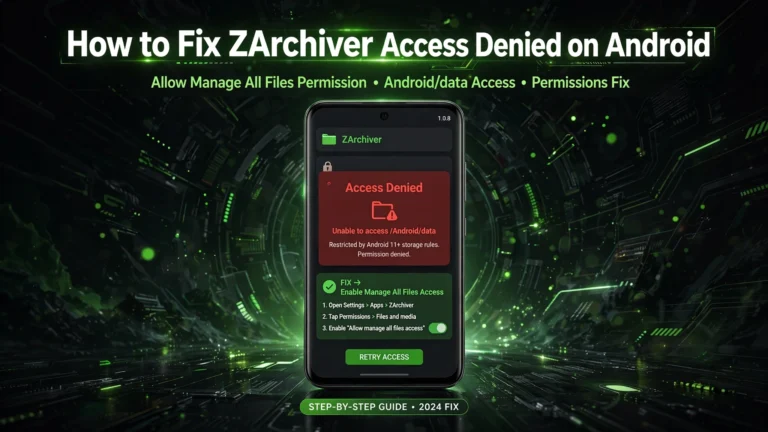
Android can restrict access to certain locations, especially Android/data and Android/obb. On Android 11 and later, system storage restrictions can prevent an app from accessing another app’s protected directories through standard file-selection methods. <Cite refs={[“turn239326search0”]}/>
If the error appears only when working inside one of these folders, the problem may be Android’s access restrictions rather than a damaged archive.
5. Missing Parts of a Split Archive
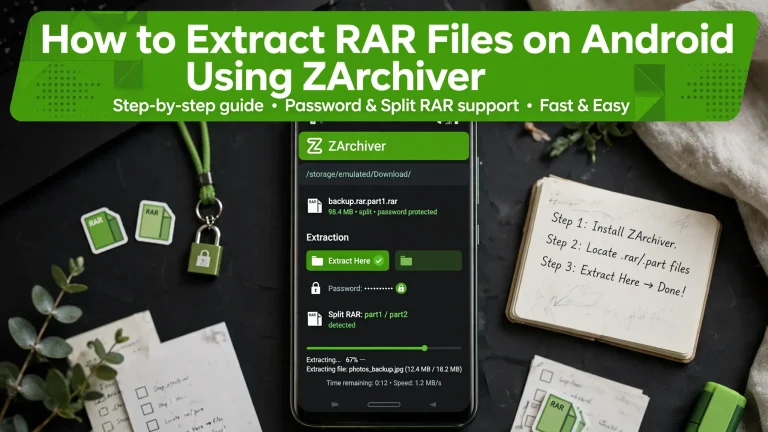
Some archives are divided into multiple parts to make large files easier to store or transfer. Examples include part1.rar, part2.rar, or files ending in .7z.001 and .7z.002.
If one part is missing, incomplete, or saved in another location, extraction may fail because ZArchiver cannot find all the required data.
6. Unsupported or Incorrect File Format
An archive may be incomplete, incorrectly named, or saved in a format that ZArchiver cannot process as expected. A file with a ZIP extension is not necessarily a valid ZIP archive.
Check the actual file source and format before trying to extract it again.
How to Fix Operation Completed with Errors in ZArchiver
Try these solutions in order, starting with the quickest checks.
Fix 1: Test the Archive for Errors
First, determine whether the problem is related to the archive itself.
- Open ZArchiver and locate the affected archive.
- If your version provides a Test option, use it to check the archive’s integrity.
- Review any error messages or failed-file information.
- If the archive test reports corruption, obtain a fresh copy from the original source.
- Try extracting the replacement file after the download finishes completely.
Testing can help identify damaged archive data, although it cannot repair every corrupted file. If the source archive is broken, downloading another copy may be necessary. <Cite refs={[“turn900036view0”]}/>

Fix 2: Free Up Storage Space
If the error occurs while extracting large files, check the available storage before repeating the operation.
- Open your phone’s Settings.
- Go to Storage.
- Check how much space is available.
- Remove or move files you no longer need, after making sure they are backed up.
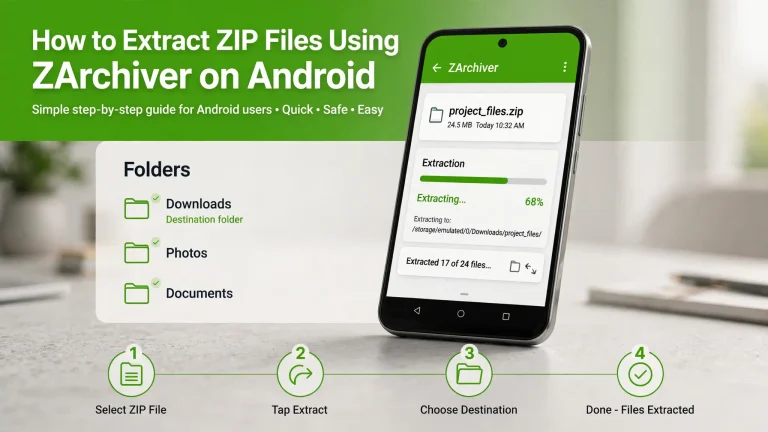
- Return to ZArchiver and extract the archive to a location with sufficient free space.
Allow room for the extracted files and any temporary files created during processing. If you are extracting a large archive, its uncompressed contents may be much larger than its download size.

Fix 3: Check the Archive Password
If the file is password-protected, make sure you have the correct password before attempting extraction again.
- Open the archive in ZArchiver.
- Choose the appropriate extraction option.
- Enter the archive password provided by its creator.
- Check for typing mistakes, including capitalization and extra spaces.
- Try the extraction again.
If the password is rejected repeatedly, confirm it with the person or website that supplied the archive. Reinstalling ZArchiver will not reveal or recover an unknown archive password.

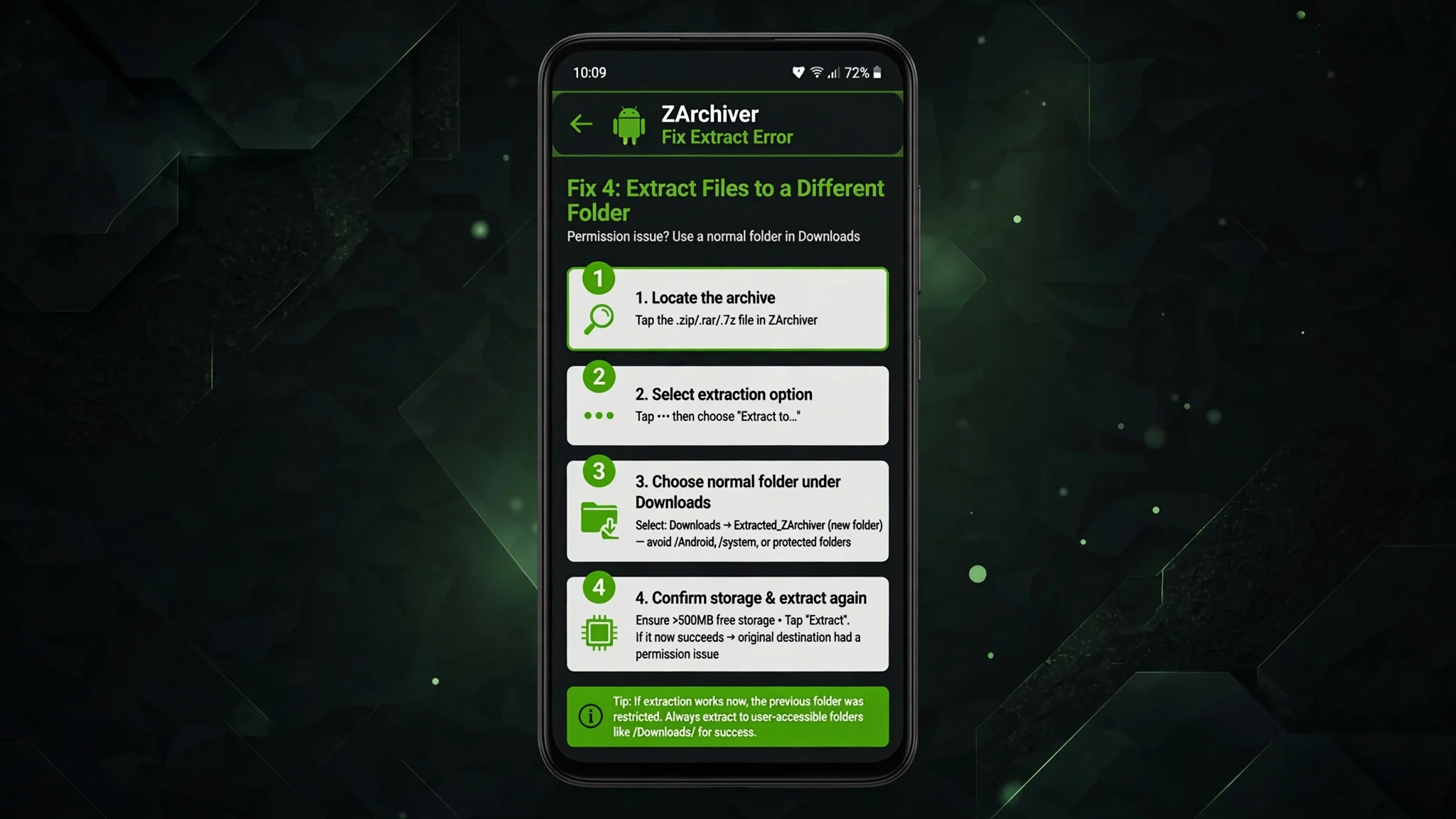
Fix 4: Extract Files to a Different Folder
Sometimes the problem is the destination folder rather than the archive.
- Locate the archive in ZArchiver.
- Select the extraction option.
- Choose a normal folder that you can access, such as a folder under Downloads.
- Confirm that the destination has enough storage space.
- Start extraction again.
If the operation succeeds in the new location, the original destination may have a permission or storage issue. Avoid repeatedly attempting to write to a protected system folder if Android blocks access.
Fix 5: Check File and Folder Permissions
If ZArchiver cannot read or write files in an ordinary folder, review its available permissions.
- Open your phone’s Settings.
- Go to Apps and select ZArchiver.
- Open Permissions and review the available file-access options.
- Allow the relevant permission if it is denied and your device offers it.
- Reopen ZArchiver and try the operation again.
Permission names and options vary by Android version and manufacturer. Remember that granting ordinary storage permission does not necessarily unlock Android/data or Android/obb.

Fix 6: Check All Parts of a Split Archive
If you are extracting a multipart archive, make sure every required part has been downloaded.
- Open the folder containing the archive parts.
- Check that all expected files are present.
- Confirm that the parts belong to the same archive and have finished downloading.
- Keep the related parts together in the same folder.
- Open the first part, following the format’s naming convention, and start extraction.
For example, a RAR archive might begin with part1.rar, while a split 7Z archive might begin with .7z.001. If another part is missing, download the missing file from the original source before trying again.

Fix 7: Check the File Format and Download
If ZArchiver cannot recognize the archive, verify that the file is complete and has the expected format.
- Check the filename and extension.
- Confirm that the source actually provides the format you expected.
- If the download is unusually small or appears incomplete, compare its size with the source’s information.
- Download another copy if corruption is suspected.
- Try opening the new file in ZArchiver.
Do not simply rename a damaged or unrelated file to .zip or .rar. Changing an extension does not convert the contents into a valid archive.

Fix 8: Restart ZArchiver and Check for Updates
If other archives also fail, the issue may not be limited to one file.
- Close ZArchiver and open it again.
- Restart your phone if the problem continues.
- Check whether a compatible update is available through a trusted source.
- Check whether a compatible update is available through a trusted source.
- Reopen the archive and test the operation again.
If the issue began immediately after an app update, first rule out file corruption, storage problems, and permissions. Consider an older release only if you have a clear compatibility reason and can verify the APK source. Clearing the app’s data or uninstalling it should not be the first step because these actions can remove settings or local information.

How to Identify the Right Fix
Use this table to narrow down the problem based on what you were doing when the message appeared.
Situation |
What to try first |
|---|---|
|
One archive fails, but others work |
Test the archive and check for corruption |
|
Password-protected file fails |
Verify the correct archive password |
|
Large archive stops during extraction |
Check available storage |
|
Error occurs only in |
Check Android’s folder-access restrictions |
|
Split RAR or 7Z extraction fails |
Confirm that every required part is present |
|
Compression fails when saving |
Check destination permissions and free space |
|
Several unrelated files fail |
Check permissions, the app, and storage |
What If ZArchiver Still Shows the Error?
If none of these solutions works, try to isolate the problem rather than repeating every step.
Test another archive known to work, then try the affected archive in a different accessible folder. If only one file fails, investigate its source and integrity. If all file operations fail, check the app’s permissions, storage availability, and whether your destination is writable.
If the message specifically says Access Denied, the problem may involve folder permissions or Android storage restrictions. See our ZArchiver Access Denied troubleshooting guide for steps focused on that error.
If the issue started after an update, you can also review the available ZArchiver old versions and their compatibility details. Do this only after checking the archive, destination, and permissions; an older version will not fix a corrupted file or a restriction imposed by Android.
Frequently Asked Questions

Conclusion
The ZArchiver Operation Completed with Errors message can have several causes, from damaged downloads and incorrect passwords to low storage or restricted folder access. Identify the specific problem first, then apply the relevant fix to avoid unnecessary changes and protect your files.